By Kislay, creator of Recordful. Last updated November 17, 2026.
Short answer: On Windows 11, press Windows + Shift + R to open Snipping Tool's recorder, drag over the part of the screen you want, click Start, and click Stop when you're done. On Windows 10 or 11 you can also press Windows + Alt + R to record the app you're in with Xbox Game Bar. When you want to cut mistakes, zoom in on your clicks, put your webcam in a corner and export an MP4 up to 4K, record with a free Chrome extension like Recordful instead.
How do I screen record on Windows 11 with Snipping Tool?
Snipping Tool, the app that takes screenshots, also records video on Windows 11. From Microsoft's support article "Use Snipping Tool to capture screenshots", checked on November 17, 2026:
- Press Windows + Shift + R. Or open Snipping Tool, select Record, then New.
- Drag to select the area of the screen you want to record.
- Click Start.
- Click Stop when you're finished.
- Save the recording, or open it in Clipchamp to edit it.
Snipping Tool can record sound too. Microsoft's Windows Insider blog announced, on August 31, 2023, "support for optionally recording your PC audio and voice overs using a microphone", with settings for the default audio of new recordings and a choice of microphone before you start. Turn the microphone and PC audio on in the recording bar before you click Start.
Microsoft lists video snips only in the Windows 11 part of its article. On Windows 10, use Xbox Game Bar.
How do I screen record on Windows with Xbox Game Bar?
Xbox Game Bar is built into Windows 10 and Windows 11. It was made for games, and it records the app you have open. From Microsoft's support article "Use a screen reader to record your screen with Xbox Game Bar", checked on November 17, 2026:
- Make sure Game Bar is on: open Settings, search for "xbox" and turn on Enable Xbox Game Bar.
- Open the app you want to record.
- Press Windows + Alt + R to start recording.
- Press Windows + Alt + M to turn your microphone on or off while recording.
- Press Windows + Alt + R again to stop.
To choose the sound, open Game Bar's settings and go to Capturing. Microsoft lists All, game, enabled mic, apps and system, and All includes every sound on the computer.
Recordings are saved as MP4 files in the Captures folder inside your Videos folder, named after the app with the date and time.
When do you need more than the built-in recorder?
Snipping Tool and Game Bar are quick, free and already on your PC, so they're the right pick for a short clip. What you get is the recording as you made it. If the video is going to a customer, a class or a team, you'll usually want to work on it after you stop:
- Cut the mistakes. Trim the start and end, or cut out the part where you went the wrong way.
- Make small text readable. Zoom in on the button you clicked, so it's clear on a phone or a projector.
- Show your face. Put your webcam in a corner while you explain.
- Keep the rest of your PC out. Record one browser tab, so notifications and other windows stay out of the video.
- Export it your way. Pick MP4 or WebM, the resolution and the frame rate.
How do I record and edit on Windows with Recordful?
Recordful is a free screen recorder that runs in Chrome (version 110 or newer), Edge and Brave on Windows 10 and 11. Recording, editing and export are free with no account, and the video stays on your PC.
- Open the Recordful page on the Chrome Web Store and click Add to Chrome.
- Click the puzzle icon next to the address bar and pin Recordful.
- Click the Recordful icon and choose what to record: a tab, your screen or a window, an area you drag out, or just your camera.
- Pick your microphone and camera if you want them. For computer sound, keep Include system audio on. When you share your whole screen, tick Share system audio in Chrome's dialog.
- Click record. There's no time limit.
- Click stop. The editor opens with your recording.
- Trim, cut and check the zooms, then export an MP4.
What can you do in Recordful's editor on Windows?
Everything below is free:
- Trim, cut, split and speed up the slow parts, like typing or a page loading.
- Auto-zoom on clicks: the video zooms in where you clicked. Add your own zooms, or remove any.
- Backgrounds and padding around your screen, with rounded corners and a shadow.
- Camera layouts: put your webcam in any corner, make it a circle or a rectangle, resize it, or hide it in parts of the video.
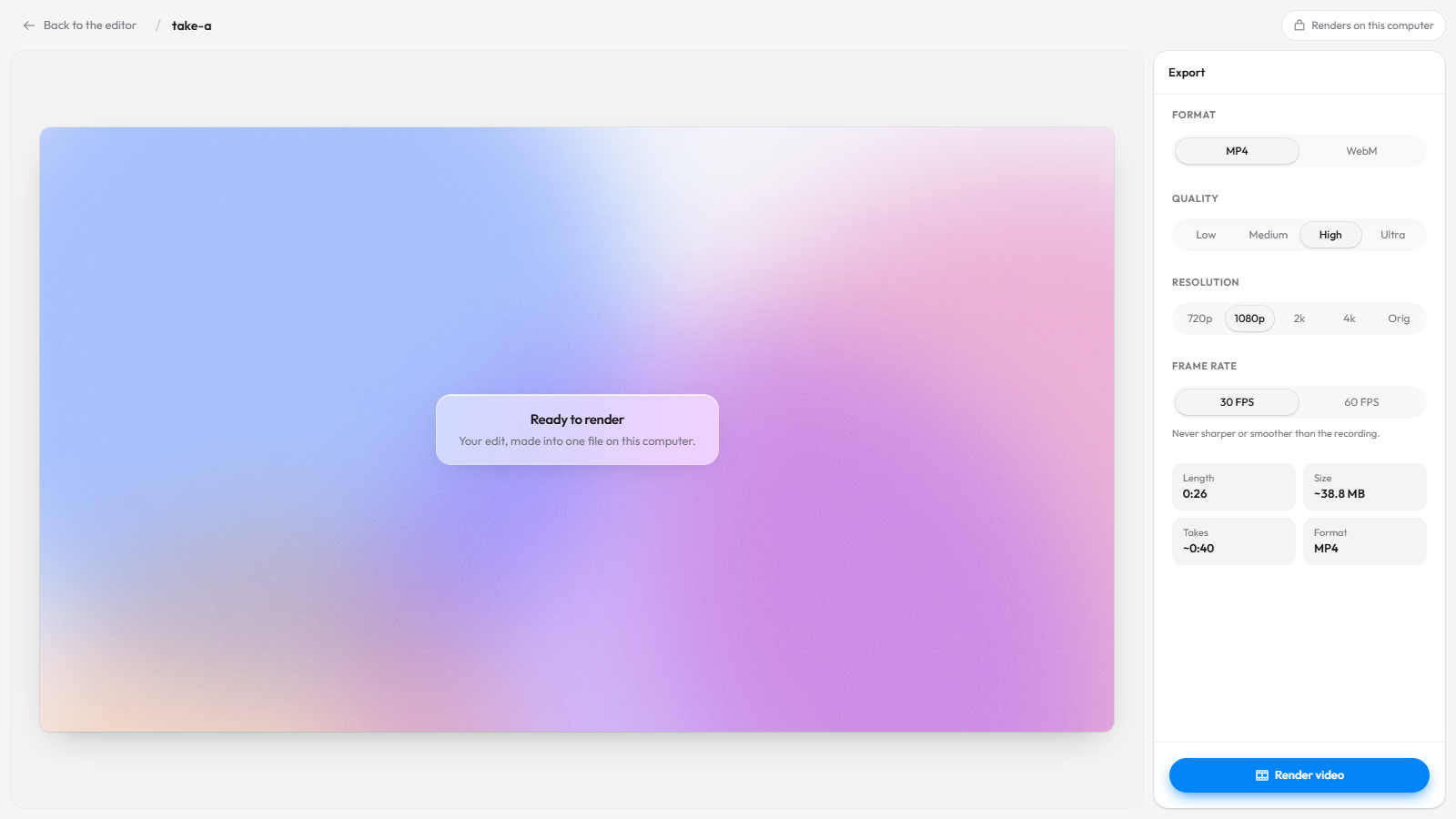
- Export as MP4 or WebM at 720p, 1080p, 2K or 4K, at 30 or 60 FPS.
A small Recordful mark is on new recordings. You can turn it off for free in the editor.
For tips on making the result look good, see how to make a screen recording look professional and the free screen recorder with auto-zoom.
Snipping Tool, Game Bar or Recordful: which should I use?
| You want to | Use |
|---|---|
| Grab a quick clip of part of the screen | Snipping Tool (Windows + Shift + R) |
| Record a game | Xbox Game Bar (Windows + Alt + R) |
| Record one Chrome tab with its sound | Recordful |
| Show your webcam in the video | Recordful |
| Trim, cut and speed up parts | Recordful |
| Zoom in on clicks automatically | Recordful |
| Export MP4 or WebM up to 4K | Recordful |
How do I record my screen with audio on Windows?
- Snipping Tool: turn on PC audio and your microphone in the recording bar before you click Start.
- Game Bar: choose All under Capturing in Game Bar's settings, and press Windows + Alt + M for the mic.
- Recordful: a tab records its own sound. For the whole screen, tick Share system audio in Chrome's dialog. See how to record a browser tab with audio.
Frequently asked questions
What is the shortcut to screen record on Windows 11? Windows + Shift + R opens Snipping Tool's recorder. Windows + Alt + R starts and stops an Xbox Game Bar recording.
Does Windows 10 have a screen recorder? Yes, Xbox Game Bar. Press Windows + Alt + R in the app you want to record. Microsoft lists Snipping Tool's video recording for Windows 11.
Where do Game Bar recordings go? To the Captures folder inside your Videos folder, as MP4 files.
Can I record my screen and webcam together on Windows? Yes, with Recordful. Pick your camera before you record, and place it in the editor afterwards. See how to record your screen and webcam.
How do I record my screen in 4K on Windows? You need a 4K display. In Recordful, set the maximum resolution to 4K (it needs a screen of at least 3840 x 2160 and 8 GB of RAM), then export at 4K. See how to record your screen in 4K.
Is there a free screen recorder for Windows with no time limit? Yes. Recordful has no time limit on recordings saved to your PC, and needs no account.
Do I need an account to use Recordful? No. Recording, editing and exporting are free with no account.
More for Windows users: the best Screen Studio alternative for Windows and a CleanShot X alternative for Windows.
See Recordful Screen Recorder and the editor.