By Kislay, creator of Recordful. Last updated November 25, 2026.
Short answer: There are two ways, and both are free in Recordful. While recording, press B (or click the blur button on the toolbar) and click any part of the web page: an email, a name, a table row. It blurs at once, stays blurred as you scroll, and the original never reaches the video. After recording, open the editor, click Masks (or press 9), click Add blur, and drag the box over what should be hidden. Drag the mask on the timeline to set when it shows.
What should I blur in a screen recording?
Anything a stranger shouldn't see if the video gets forwarded:
- Email addresses, phone numbers and customer names
- API keys, tokens and passwords in settings pages or a terminal
- Bank details, invoices and order totals
- Internal dashboards, revenue charts and other customers' data
- Browser tabs, bookmarks and notifications you forgot were there
Check the edges of the screen too. A bookmark bar or a chat preview leaks more than people expect.
Which way is safer: blur while recording or after?
| Blur while recording | Mask in the editor | |
|---|---|---|
| When | Before the sensitive part is filmed | After, on the finished recording |
| What it blurs | Parts of the web page you click | Any box you draw on the picture |
| Follows scrolling | Yes, it stays on the part you clicked | No, it stays where you put it |
| Is the original in the file | No, not from the moment you blur it | Yes, the mask hides it in the edit and the export |
| Works on | Web pages you record in Chrome | Any recording, including uploads |
Blurring while recording is the safer one: from the moment you blur it, the sensitive text never lands in the video file. Use editor masks for what you only notice afterwards, or for things outside a web page.
How do I blur part of the page while recording?
- Install Recordful and start a recording of the tab, an area or your screen.
- Press B, or click the blur button on the Recordful toolbar. A Blur mode note appears.
- Move the mouse over the page. A box outlines the part under the pointer.
- Click to blur it. Click a blurred part again to bring it back.
- Press Esc or B to leave blur mode and keep using the page. The blurred parts stay blurred, even as you scroll.
- To clear every blur at once, click the clear button on the blur toolbar, or press 0 while in blur mode.
Blur a page in the first seconds after it opens, before you start talking about it, and trim those seconds off in the editor.
The blur happens in the page itself, so it works for anything that page shows: text, images, a table, a whole sidebar. It is part of the free extension, along with drawing on the screen while you record.
How do I blur something after recording?
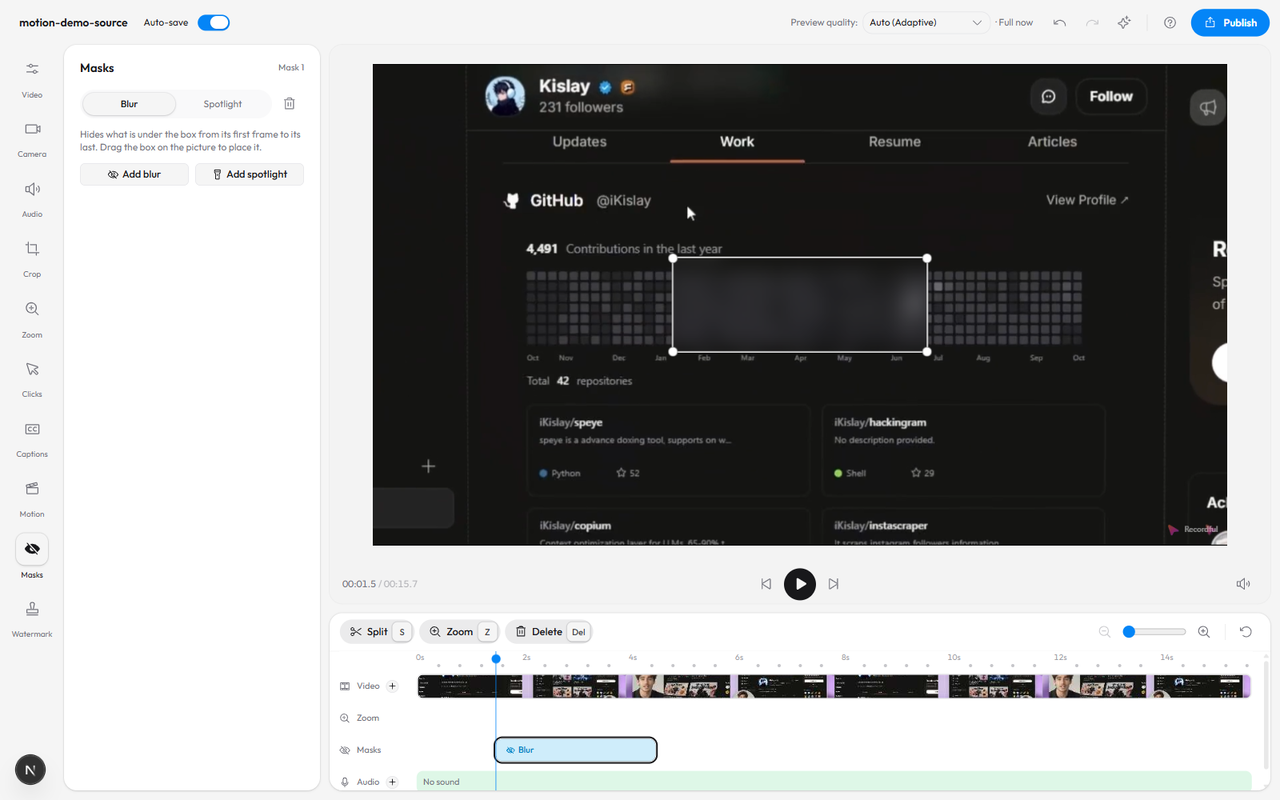
- Open the recording in the editor. Stopping a Recordful recording opens it there. For a video made with another tool, open recordful.app/editor and drop in an MP4, WebM or MOV file.
- Move the playhead to where the sensitive part first shows.
- Click Masks in the left rail, or press 9.
- Click Add blur. A mask lands at the playhead.
- Drag the box on the picture over what should be hidden, and drag its corners to size it.
- On the Masks row of the timeline, drag the mask's ends so it covers every moment the sensitive part is on screen.
- Play it through once, then export.
A mask stays on its spot when the video zooms or is cropped, so a zoom never reveals what it covers. Where a browser can't blur, the mask turns into a coarse mosaic instead, so nothing shows through either way.
Can I highlight one area instead of hiding it?
Yes. Click Add spotlight in Masks, or switch a mask from Blur to Spotlight at the top of the panel. A spotlight dims everything around its box, which pulls the eye to one button or one number. Use it with a zoom for a step you really want people to notice.
What if the sensitive part moves?
A mask covers one box for its whole time on the timeline. If the thing you're hiding moves (say you scroll), split the job: end the first mask where it moves, and add a second mask at its new spot. For pages you record in Chrome, blurring while recording avoids this, because the blur sticks to the part you clicked.
Tips for a recording with nothing to hide
- Use a test account. Demo data is better than a blur.
- Record one tab, not your whole screen, when the demo is in the browser. Notifications and other windows stay out.
- Make the box bigger than the text. A blur that fits too tightly can still show the length and shape of a name.
- Watch the export once, start to finish, before you send it.
Recording a bug for a developer? The same steps apply: see how to record a bug report video. For more on what stays on your computer, see the private screen recorder guide.
Frequently asked questions
Is blurring free in Recordful? Yes. Blurring while recording and blur and spotlight masks in the editor are free, with no account.
Can someone un-blur my video? Not when you blur while recording: from the moment you blur it, the text is not recorded. An editor mask is drawn into the exported video, so the exported file holds no clear copy either. The recording on your computer keeps its original, so share the export, not the raw file.
Does blur work when I record my whole screen? Blurring while recording works on the web pages Recordful runs in, whatever you record. For other apps on your screen, add a blur mask in the editor afterwards.
How do I remove a blur? While recording, click the blurred part again in blur mode, or clear them all. In the editor, select the mask and click the bin.
Does the mask move with zooms? Yes. Masks stay on their spot when the video zooms or is cropped.
Can I blur my webcam background? Yes. Recordful's camera has a blur background effect, set before you record.