By Kislay, creator of Recordful. Last updated November 18, 2026.
Short answer: You need a screen that shows at least 3840 x 2160 pixels and a computer with 8 GB of RAM or more. Install the free Recordful Chrome extension, open the settings menu in its popup, set Max resolution to 4k and Max FPS to 60, turn on Highest quality, and record. When you stop, export an MP4 at 4K from the editor. It's free, with no account and no time limit, and the file is made on your computer.
What do I need to record my screen in 4K?
A 4K video is 3840 x 2160 pixels. A recorder can only capture the pixels your screen shows, so:
- A 4K display, or one with more pixels, like a 5K or 6K monitor. A 1080p laptop screen records a 1080p video, whatever the setting says.
- Display scaling is fine. Recordful measures your screen in physical pixels, so a 4K monitor at 150% scaling still counts as 4K.
- At least 8 GB of RAM. 4K frames are four times the size of 1080p frames.
- Free disk space. Keep at least 1 GB free before you start. 4K recordings at high quality use more space per minute than 1080p.
Can the built-in recorders record in 4K?
Microsoft's Snipping Tool and Xbox Game Bar articles and Apple's "How to record the screen on Mac", checked on November 18, 2026, don't list a resolution setting. They record what your screen shows: on a 4K display, that's a 4K-sized picture. The file comes out as it was recorded, with no editor to zoom, cut or pick an export size. To learn how they work, see how to screen record on Windows and how to screen record on a Mac with audio.
How do I record my screen in 4K with Recordful?
- Open the Recordful page on the Chrome Web Store and click Add to Chrome. It works in Chrome 110 or newer, Edge and Brave, on Windows, macOS, ChromeOS and Linux.
- Pin Recordful next to the address bar and click its icon.
- Open the settings (gear) menu in the popup.
- Under Max resolution, choose 4k. It's greyed out when your screen is smaller than 3840 x 2160 or your computer reports less than 8 GB of RAM. The default is 1080p.
- Under Max FPS, choose 60 for smooth scrolling and cursor movement, or 30 for smaller files.
- Turn on Highest quality in the popup. It records at a higher bitrate.
- Choose what to record: a tab, your screen, a window or an area. For the sharpest result, record your whole 4K screen, or a tab in a full-screen window.
- Click record, and stop when you're done. The editor opens.
How do I export a screen recording in 4K?
In the editor, click Publish → Download locally and pick:
- Format: MP4 for anywhere, WebM for the web.
- Resolution: 720p, 1080p, 2K, 4K or the original size.
- Frame rate: 30 or 60 FPS.
- Quality: Low, Medium, High or Ultra.
The video is rendered on your computer and saved to your disk. Nothing is uploaded. A small Recordful mark is on new recordings; turn it off for free, or put your own logo there instead.
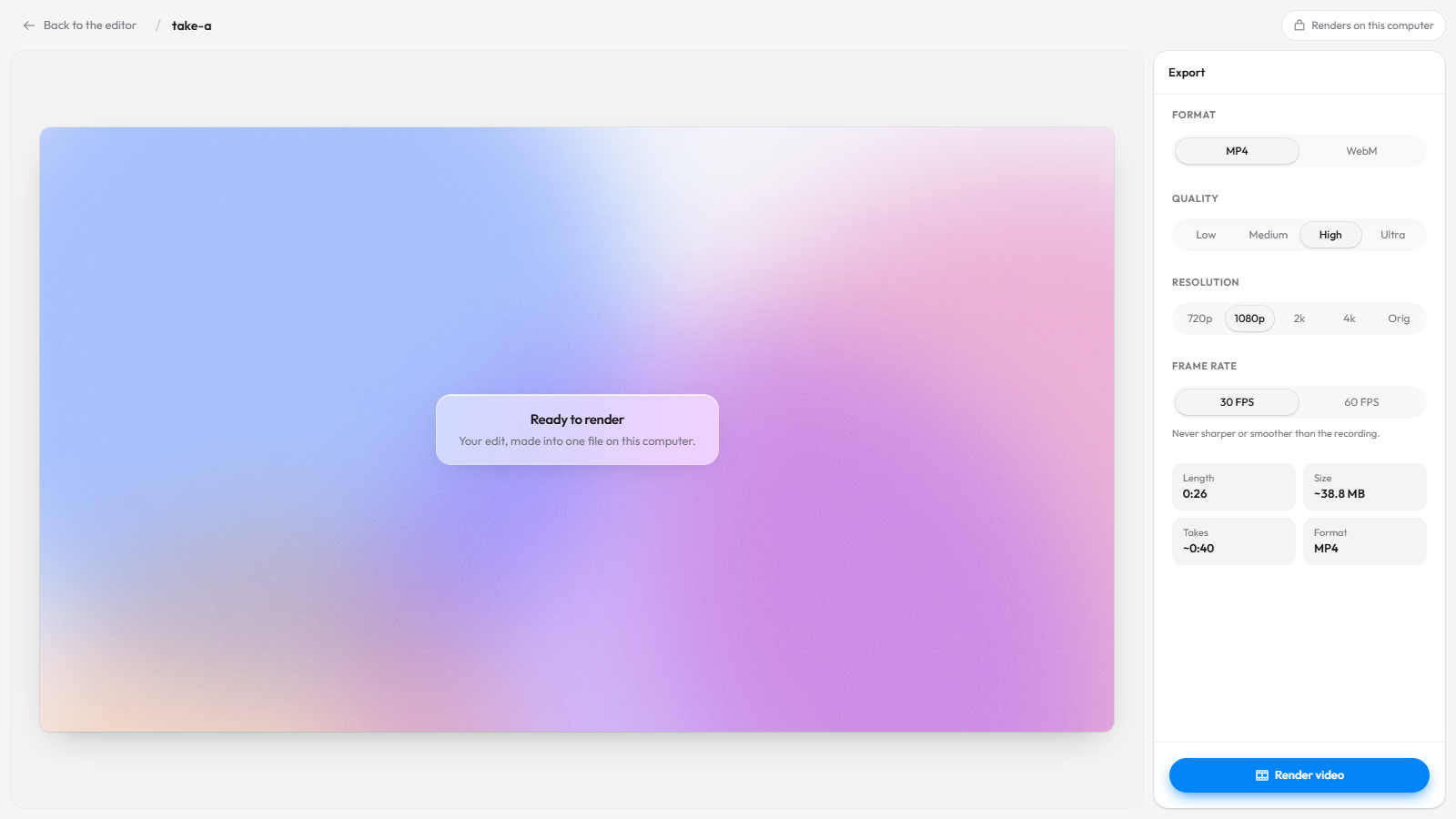
Exporting a 1080p recording at 4K makes a bigger file, not a sharper one. For real 4K detail, record in 4K.
Why record in 4K? Zooms stay sharp
The best reason to record a screen in 4K is the zoom. Recordful's editor zooms in on your clicks automatically, and you can add your own zooms. A 2x zoom into a 1080p recording shows a quarter of the pixels, stretched. A 2x zoom into a 4K recording is still full 1080p, so small text stays crisp.
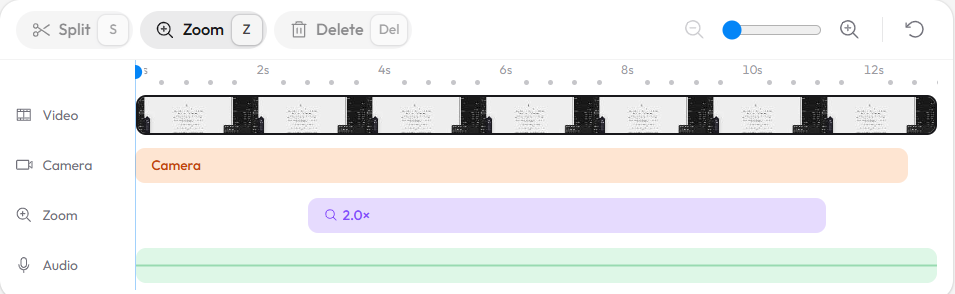
4K also helps when:
- Viewers watch on a large monitor or a TV.
- You plan to crop the video for a vertical clip, or cut a close-up out of it.
- Your app has dense tables, code or small UI text.
For a quick update to a teammate, 1080p is plenty, and the files are smaller.
What else can I do in the editor?
All free:
- Trim, cut and speed up slow parts.
- Auto-zoom on clicks, manual zooms, and click effects and click sounds.
- Backgrounds and padding, rounded corners and a shadow.
- Camera layouts: your webcam in a corner or beside the screen. See how to record your screen and webcam.
- Your own watermark, logo or text.
More: how to make a screen recording look professional and the free Loom alternative with 4K export.
Frequently asked questions
Can I record in 4K on a 1080p screen? No. A recorder captures the pixels your screen shows. On a 1080p screen you can export at 4K, but it's an upscaled 1080p video.
Why is the 4k option greyed out in Recordful? Your screen is smaller than 3840 x 2160 physical pixels, or your computer reports less than 8 GB of RAM.
Can I record in 4K at 60 FPS for free? Yes. Set Max resolution to 4k and Max FPS to 60 in Recordful, then export at 4K and 60 FPS. It's free with no account.
How much space does a 4K screen recording take? It depends on the length, the frame rate and how much moves on screen. Keep at least 1 GB free before you start, more for long recordings.
Is there a time limit on 4K recordings? No. Recordings saved on your computer have no time limit.
Does Recordful upload my 4K recording? No. Recording, editing and export happen on your computer. Share links are part of Recordful Pro.
See Recordful Screen Recorder and the editor.