By Kislay, creator of Recordful. Last updated November 25, 2026.
Short answer: Press Shift + Command + 5, open Options, pick your microphone, and click Record. That records your voice. Sound playing on your Mac (a video, a call, an app's alerts) is a separate thing: Apple's Screenshot app offers Include System Audio only from macOS 27, and QuickTime Player's screen recording lists only a microphone. To record system audio on macOS 14 Sonoma or later, use the free Recordful desktop app and turn on System audio. If the sound comes from a website, the free Recordful Chrome extension records a tab with its sound.
What audio can a Mac record with its built-in tools?
There are two kinds of sound in a screen recording:
- Microphone audio: your voice.
- System audio: everything your Mac plays, like a YouTube video, a Zoom call or a notification sound.
From Apple's support article "How to record the screen on Mac", checked on November 25, 2026:
| Built-in tool | Microphone | System audio |
|---|---|---|
| Screenshot app (Shift + Command + 5) | Yes | Include System Audio, in macOS 27 or later |
| QuickTime Player (File > New Screen Recording) | Yes | Not listed by Apple |
So on macOS 14 Sonoma, 15 Sequoia or 26 Tahoe, the built-in tools record your voice but not the sound your Mac plays.
How do I screen record on a Mac with the Screenshot app?
From the same Apple article:
- Press Shift + Command + 5.
- Choose Record Entire Screen, Record Selected Window (macOS Tahoe 26 or later) or Record Selected Portion. For a portion, drag its borders to set the area.
- Click Options and choose a microphone. On macOS 27 or later, choose Include System Audio to record your Mac's sound too.
- In Options you can also turn on Show Mouse Clicks, set a timer, and pick where to save. Recordings go to the desktop by default.
- Click Record. For a window, click the window.
- To stop, click the Stop button in the menu bar or press Command + Control + Esc.
The recording is saved as a .mov file named "Screen Recording" with the date and time.
How do I screen record on a Mac with QuickTime Player?
- Open QuickTime Player from Applications.
- Choose File > New Screen Recording, or press Control + Command + N. If the Screenshot toolbar appears, follow the steps above.
- Click the arrow next to the Record button to choose a microphone and Show Mouse Clicks in Recording.
- Click Record, then click anywhere to record the whole screen, or drag to select an area and click Start Recording.
- To stop, click Stop in the menu bar or press Command + Control + Esc. QuickTime opens the recording.
Apple suggests lowering the volume or using headphones while recording with a microphone, to avoid feedback.
How do I record system audio on a Mac?
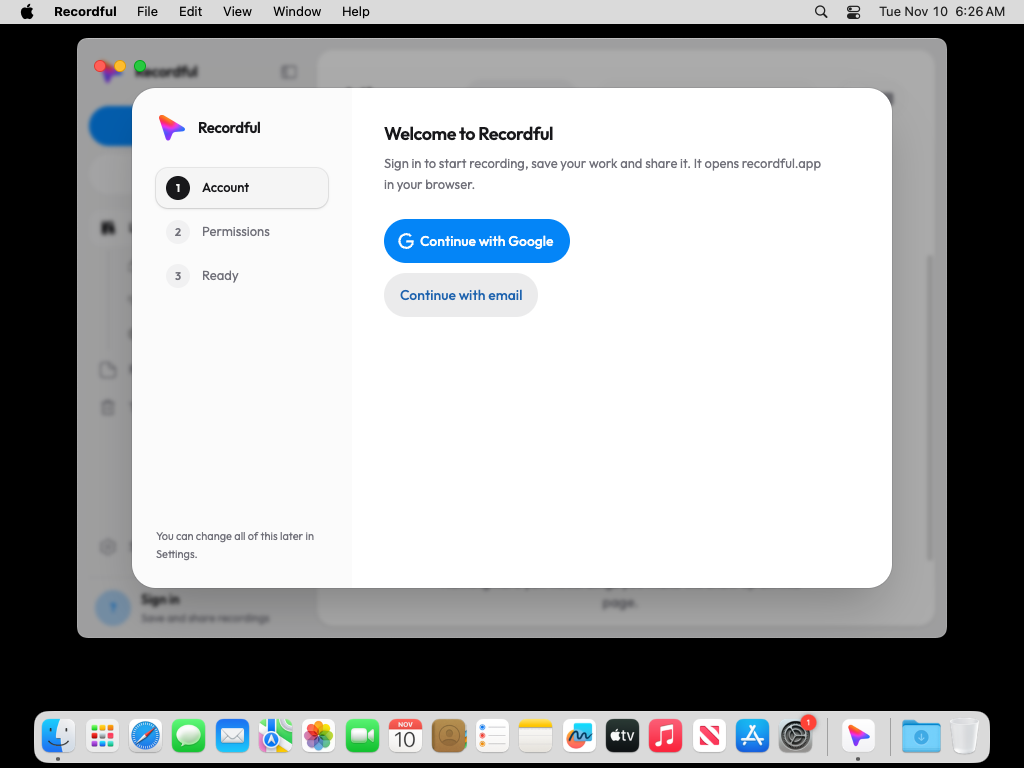
Use the Recordful desktop app. It records your screen or a window with your Mac's sound, using Apple's ScreenCaptureKit, on macOS 14 Sonoma or later, on Apple silicon and Intel Macs. It's free; you sign in with a free account the first time.
- Download Recordful for Mac from the download page and drag it into Applications.
- Open it. The first time, if macOS asks, click Open Anyway in System Settings → Privacy & Security.
- When Recordful asks, turn on Screen & System Audio Recording for it in the same settings page, and reopen the app.
- Choose the screen or the window you want to record.
- Turn on System audio, and pick your microphone if you want your voice too.
- Click record. Stop when you're done, and the editor opens with your recording.
- Export an MP4 at 720p, 1080p or 4K.
How do I record a Mac screen with audio from a website?
If the sound comes from a page in Chrome, like a web app demo, an online course or a video, record the tab with the Recordful Chrome extension. A tab records its own sound, so you get the video's audio without notification pings or music from other apps.
On a Mac, Chrome only shares sound from a tab, not from the whole screen or another app. So for website audio, pick the tab.
- Add Recordful from the Chrome Web Store and pin it.
- Go to the tab with the sound and click the Recordful icon.
- Choose to record the tab.
- Keep Include system audio on, and pick your microphone if you want to talk over it.
- Click record. If Chrome shows its sharing dialog, make sure Also share tab audio is on.
- Stop. The editor opens in Chrome with your recording.
The extension needs no account. More detail in how to record a browser tab with audio.
What else do you get when you record with Recordful?
The built-in tools give you a .mov of the recording as it happened. Recordful opens an editor when you stop, and these are free:
- Trim, cut and speed up slow parts.
- Auto-zoom on clicks, so small text stays readable, plus your own zooms.
- Backgrounds and padding with rounded corners and a shadow.
- Your webcam in a corner or beside your screen, moved and resized after recording.
- Export MP4 (the extension also exports WebM), up to 4K.
A small Recordful mark is on new recordings. Turn it off for free in the editor.
Built-in tools or Recordful: which should I use on a Mac?
| You want to | Use |
|---|---|
| A quick clip with your voice | Screenshot app (Shift + Command + 5) |
| System audio on macOS 27 | Screenshot app, Include System Audio |
| System audio on macOS 14, 15 or 26 | Recordful desktop app |
| Sound from one website, nothing else | Recordful Chrome extension, tab recording |
| Cut, zoom on clicks and add a background | Recordful |
| An MP4 instead of .mov | Recordful |
Frequently asked questions
Why does my Mac screen recording have no sound? The Screenshot app and QuickTime record a microphone, and the sound your Mac plays only on macOS 27 or later with Include System Audio. Check that a microphone is picked in Options. For system audio on older macOS, use the Recordful desktop app.
How do I screen record on a Mac with internal audio? Use the Recordful desktop app on macOS 14 or later: allow Screen & System Audio Recording, turn on System audio, and record. On macOS 27, Apple's Screenshot app also has Include System Audio.
Can QuickTime record system audio? Apple's article lists only a microphone for QuickTime screen recordings.
Can Chrome record system audio on a Mac? Chrome on a Mac shares sound from a tab only. Record the tab with Recordful to get its sound.
Can I record my voice and system audio at the same time? Yes. In the Recordful desktop app, turn on System audio and pick your microphone.
Where do Mac screen recordings go? Screenshot app recordings go to the desktop by default, as .mov files. Recordful saves to your Mac and exports MP4.
Is Recordful free on a Mac? Yes. Recording, editing and export are free. The Chrome extension needs no account; the desktop app asks you to sign in with a free account.
More: how to screen record on Windows, how to record your screen and webcam, and how to make a screen recording look professional.
See Recordful Screen Recorder and the editor.