By Kislay, creator of Recordful. Last updated November 20, 2026.
Short answer: To make a tutorial video, pick one task the viewer should be able to do at the end, write one short sentence for each on-screen action, then record your screen with your voice. In the editor, cut the mistakes, let auto-zoom move in on your clicks, add arrows or numbered steps, record a cleaner voiceover if you need one, and add captions. Export an MP4 or share a link. Recordful does all of this in Chrome or in its desktop app, and recording, editing and export are free.
What makes a good tutorial video?
A good tutorial answers one question, shows each step clearly and stops when the viewer can do it themselves. Most bad tutorials fail in the same three ways: they try to teach everything, the important click is too small to see, or the narrator loses their place.
The seven steps below fix each of those.
Step 1: Plan one task per video
Write the goal as a sentence that starts with "By the end, you can…".
- "By the end, you can invite a teammate to your workspace" is one video.
- "By the end, you know the whole settings page" is five videos.
Short, single-task videos are easier to record, easier to redo and easier to find. If your topic has several tasks, make a series and link them together.
| Kind of tutorial | Good length |
|---|---|
| One button or setting | 30 to 60 seconds |
| One task with a few steps | 1 to 3 minutes |
| A workflow from start to finish | 3 to 8 minutes |
| A course lesson | 5 to 15 minutes |
These are rules of thumb, not research. If the viewer can do the task sooner, stop sooner.
Step 2: Write a short script
You don't need a full script, but you need the order. Write one line for each thing you will do on screen:
- "Open Settings from the menu in the top right."
- "Click Members, then Invite."
- "Type their email and pick a role."
- "They get an email with a link. That's it."
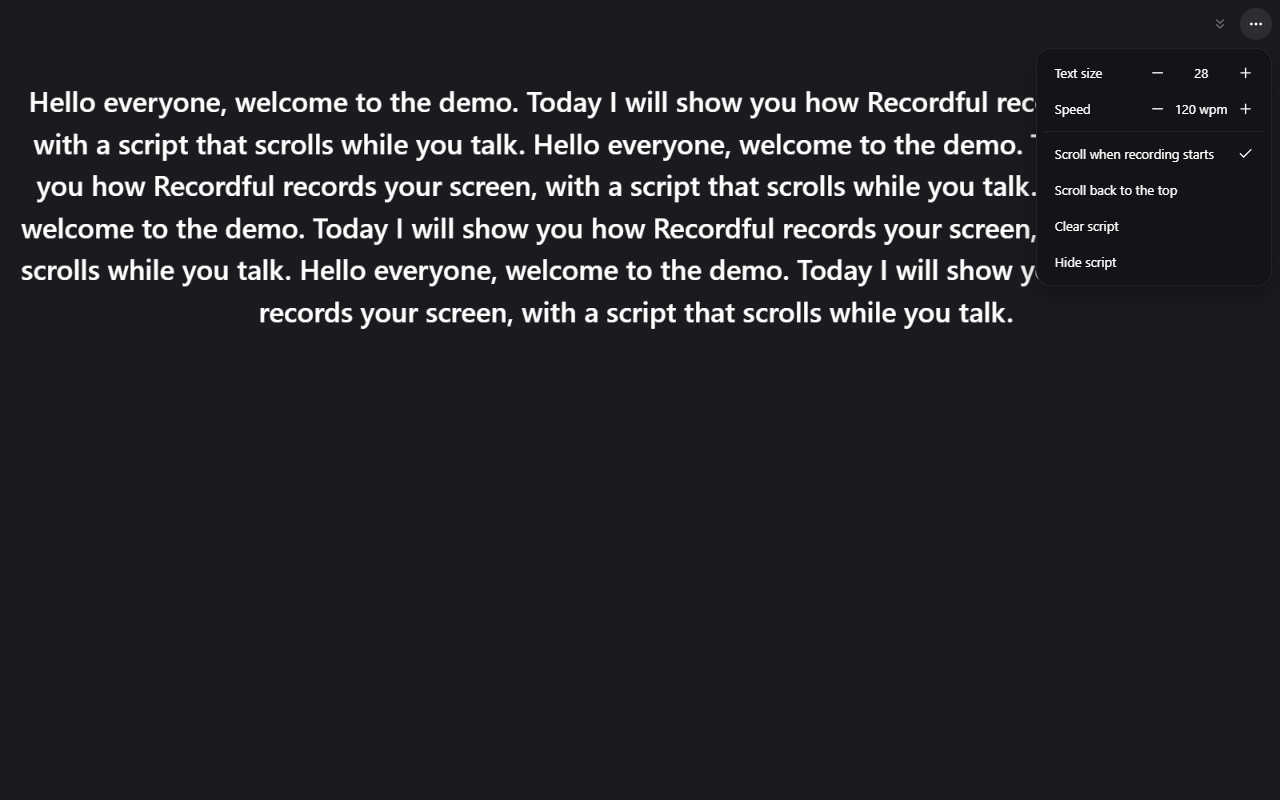
If you lose your place when you talk, put the script in a teleprompter. Recordful's teleprompter is a small floating window that scrolls your script at the speed you set and stays out of the video when you record a tab, a window, an area or your camera.
Step 3: Get the screen ready
- Use a test account with realistic sample data, never real customer data.
- Close tabs and turn off notifications.
- Set the browser zoom so text is easy to read. 110% to 125% often helps on a large screen.
- Start on the page where the task begins, not on your desktop.
Step 4: Record your screen and voice
Install Recordful from the Chrome Web Store (it also runs in Edge and Brave), or the desktop app for macOS, Windows and Linux. The extension needs no account.
- Pick what to record. Tab is best for a web app: the viewer sees only the page. Use Screen for a window or a desktop app, or a custom area to record part of the page.
- Turn on your microphone, and your camera if you want your face in a corner.
- Press record. A countdown gives you a breath before it starts.
- Talk a little slower than feels natural, and pause for a second after each click.
If you make a mistake, don't stop. Pause for two seconds, say the sentence again and carry on. Click the flag on the recording toolbar to drop a marker there, so you can find the spot in the editor. You can also pause and resume with Alt+Shift+M, or draw on the screen to point at something.
There is no time limit on a local recording, so a long lesson is fine.
Step 5: Edit: cut, zoom and point
When you stop, the editor opens with your recording. These are the edits that matter most in a tutorial, and all of them are free.
- Trim and cut. Remove the start, the end and the mistakes. Your markers sit on the timeline, so you can jump straight to them.
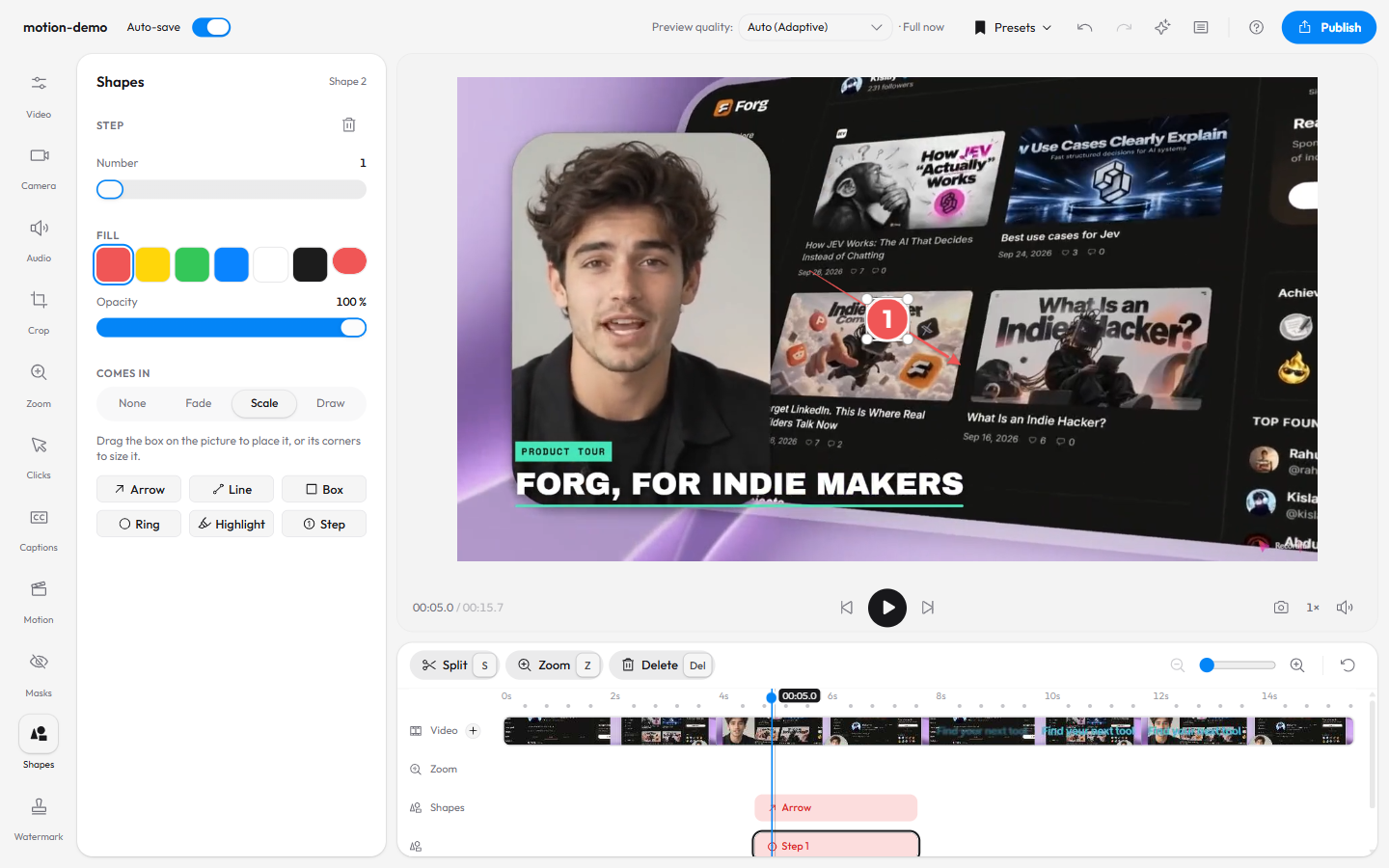
- Auto-zoom on clicks. Recordful knows where you clicked and zooms in on those moments, then back out. The small button the viewer needs to see fills the frame. Add a manual zoom anywhere else. See how to add auto-zoom for free.
- Click effects and click sounds, so every click is easy to follow.
- Shapes. Add arrows, boxes, rings, highlights and numbered steps that count 1, 2, 3 on their own. They stay on their spot when the video zooms.
- Speed. Speed up a slow page load or a long form.
- Background and padding, to make the recording look finished.
For more polish, see how to make a screen recording look professional.
Step 6: Add a voiceover and captions
Talking and clicking at the same time is hard. If the audio came out rushed, record it again without touching the screen recording:
- Put the playhead where the narration starts.
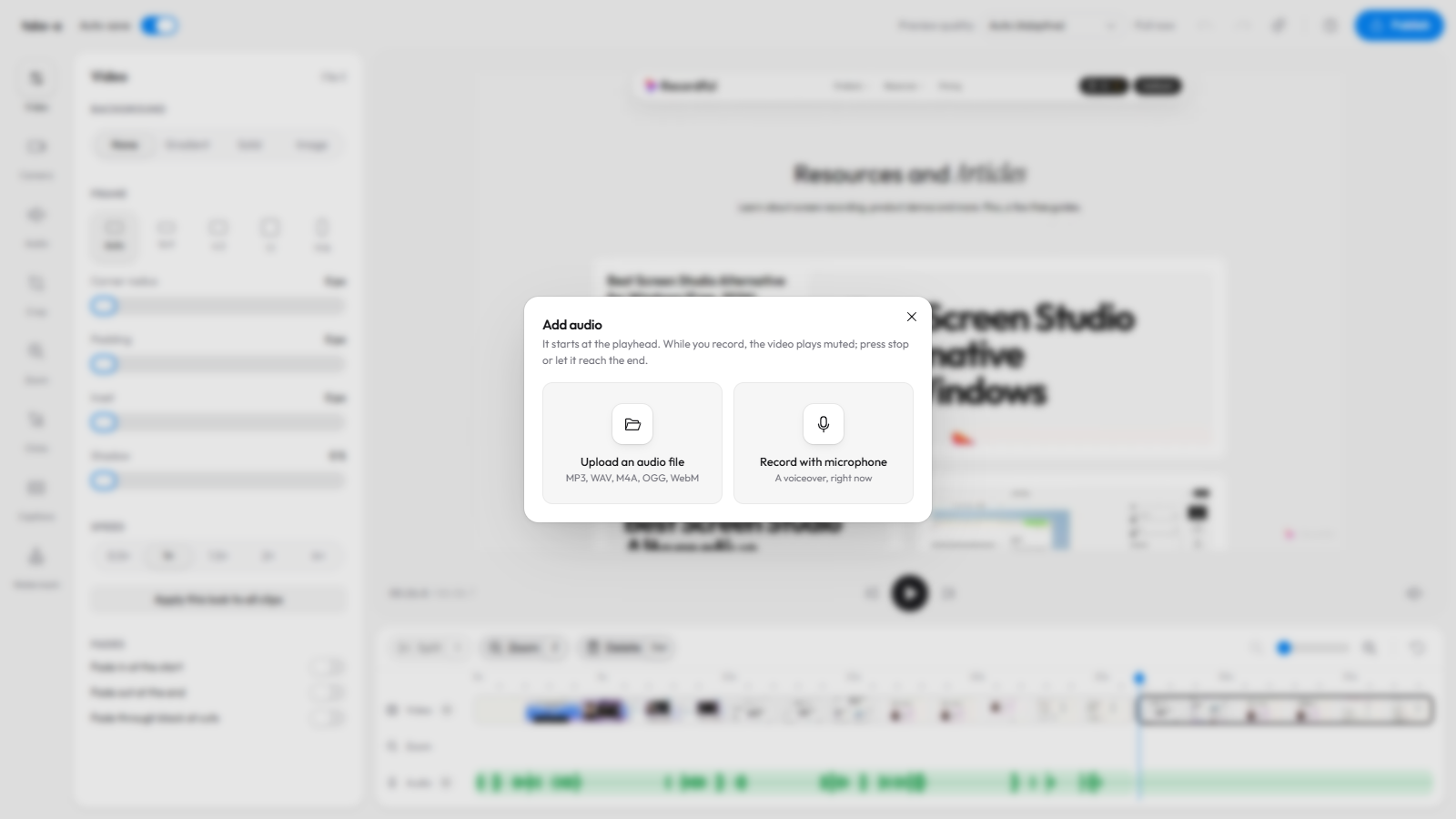
- Click the + beside Audio and choose Record with microphone.
- Talk while the video plays muted. Your take lands on the timeline where you spoke it.
The full walkthrough is in how to add a voiceover to a screen recording.
Then add captions. Many people watch tutorials with the sound off, and captions help viewers who aren't native speakers. In Recordful, open Captions and click Generate captions. You can let it detect the language or pick one of 10, fix any line by hand, choose the size, font, position and colour, and colour the word being spoken. You can also download them as a .vtt file. Captions are part of Recordful Pro, along with audio cleanup that removes background noise, echo and filler words. See how to remove filler words from a screen recording.
Step 7: Export or share a link
To download a file: click Publish → Download locally.
| Format | Use it for |
|---|---|
| MP4 | YouTube, course platforms, your help center, email |
| WebM | The web, smaller files |
| GIF | A short loop in docs or a README (up to 30 seconds) |
Pick the resolution, from 720p up to 4K, and 30 or 60 FPS. Exports are free and run on your computer.
To share a link: with Recordful Pro, the video gets a watch page with a searchable transcript, captions, comments, an AI summary with chapters, and view counts. You choose who can watch: only you, your workspace or anyone with the link. Pro is $19 a month, or $108 a year, for the whole workspace. See how to share a screen recording with a link.
Tutorial video checklist
- One task, written as "By the end, you can…"
- One script line per on-screen action
- Test account, clean browser, readable zoom level
- Mistakes marked with a flag while recording
- Trimmed start and end, cuts at each mistake
- Zoom on every important click
- Arrows or numbered steps where the viewer might get lost
- Captions on
- Exported as MP4, or shared as a link
Frequently asked questions
What do I need to make a tutorial video? A screen recorder with a microphone, and an editor that can cut and zoom. Recordful's Chrome extension and desktop app record your screen, camera and voice, and the editor that opens afterwards handles cuts, zooms, arrows and export for free.
How do I make a tutorial video for free? Install the Recordful Chrome extension, record a tab or your screen, then trim, auto-zoom on clicks, add shapes and export MP4 or WebM in the free editor. The extension needs no account and has no time limit.
How long should a tutorial video be? As short as the task allows. One setting takes 30 to 60 seconds, one task with a few steps 1 to 3 minutes, and a full workflow 3 to 8 minutes.
Should I write a script for a tutorial? Write at least one line per on-screen action, so you know the order. If you lose your place easily, read the script from Recordful's teleprompter while you record.
How do I fix a mistake without recording again? Pause, say the line again, and drop a marker with the toolbar flag. In the editor, jump to the marker and cut the bad take. If only the words were wrong, record a new voiceover over that part.
How do I add captions to a tutorial video? In Recordful's editor, open Captions and click Generate captions. You can edit each line, style them and download a .vtt file. Captions are part of Recordful Pro.
What is the best format for a tutorial video? MP4 for almost everything: YouTube, course platforms and help centers. Use a GIF for a short loop in docs.