By Kislay, creator of Recordful. Last updated November 13, 2026.
Short answer: Open the recording in Recordful's editor, put the playhead where the narration should start, click the + beside Audio and choose Record with microphone. The video plays muted while you talk. Press stop, pause, or let it reach the end, and your voiceover lands on the timeline exactly where you spoke it. You can also Upload an audio file instead. It's free and you don't record the screen again.
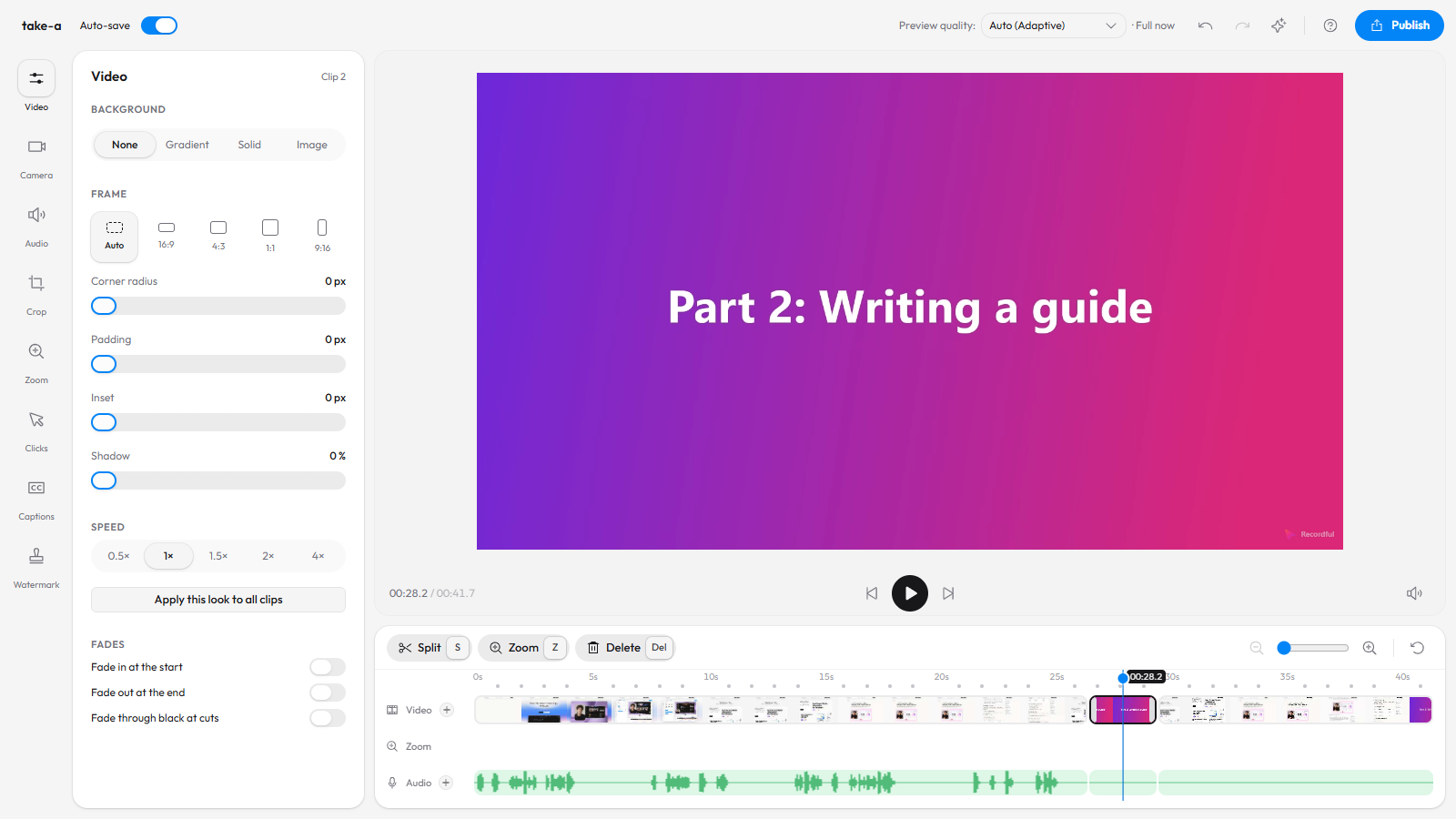
A silent clip with narration recorded afterwards in Recordful's editor.
Why record the voiceover separately
Talking and clicking at the same time is hard. Most people do one of them badly: the clicks are rushed, or the explanation trails off. Splitting them fixes both.
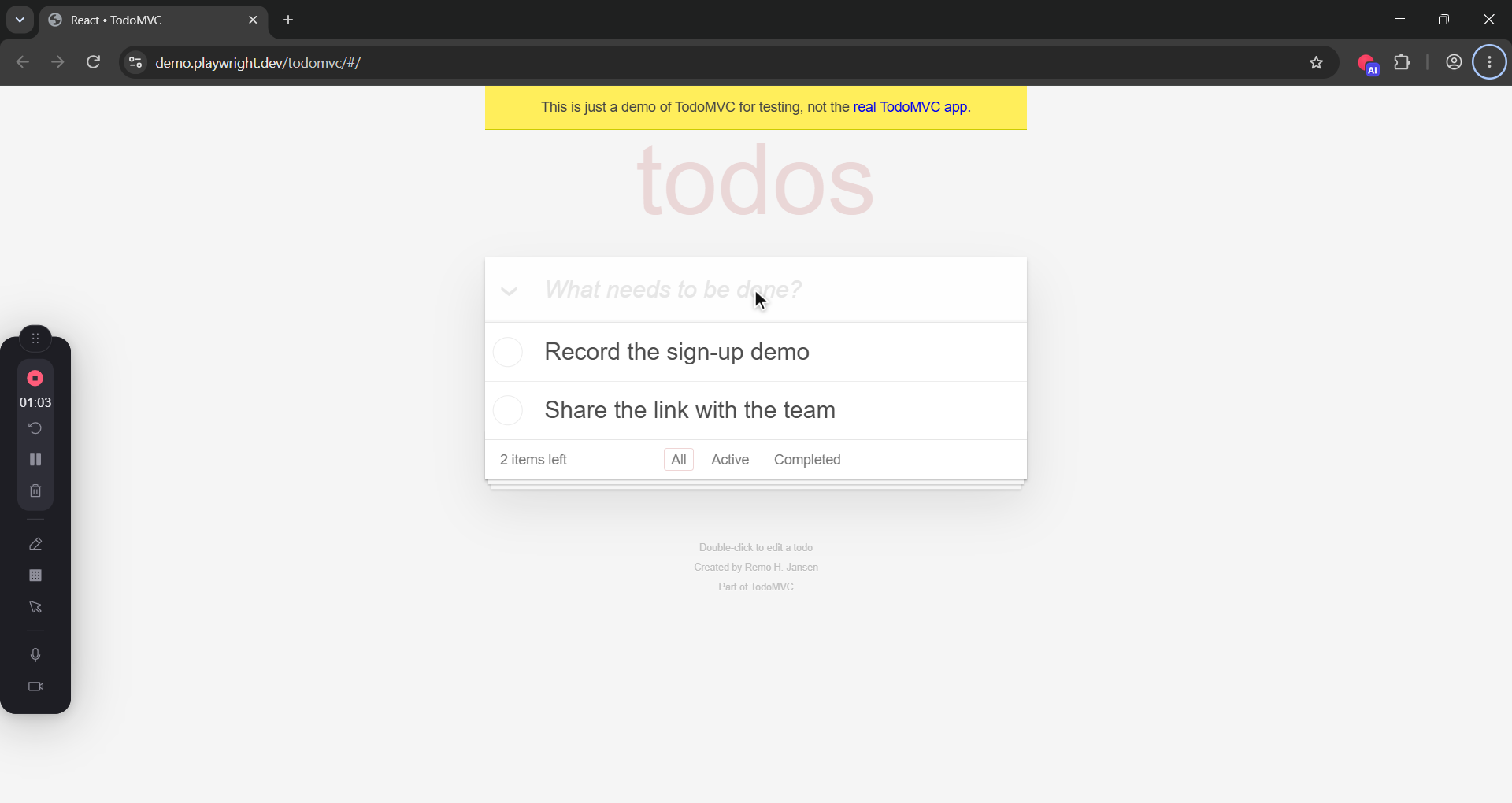
- Record the screen first, silently, at your own pace.
- Then talk over it, watching the video, with nothing else to think about.
It also saves a take you already have. If a section came out silent, or you said something wrong, you redo the words, not the whole recording.
Step 1: Open the recording in the editor
Stop a Recordful recording and the editor opens. For any other video, go to recordful.app/editor and drop in an MP4, WebM or MOV.
Step 2: Put the playhead where the narration starts
Click the timeline at the moment you want to start talking. The voiceover is recorded from the playhead, so it lines up with the picture by itself.
Step 3: Click + beside Audio → Record with microphone
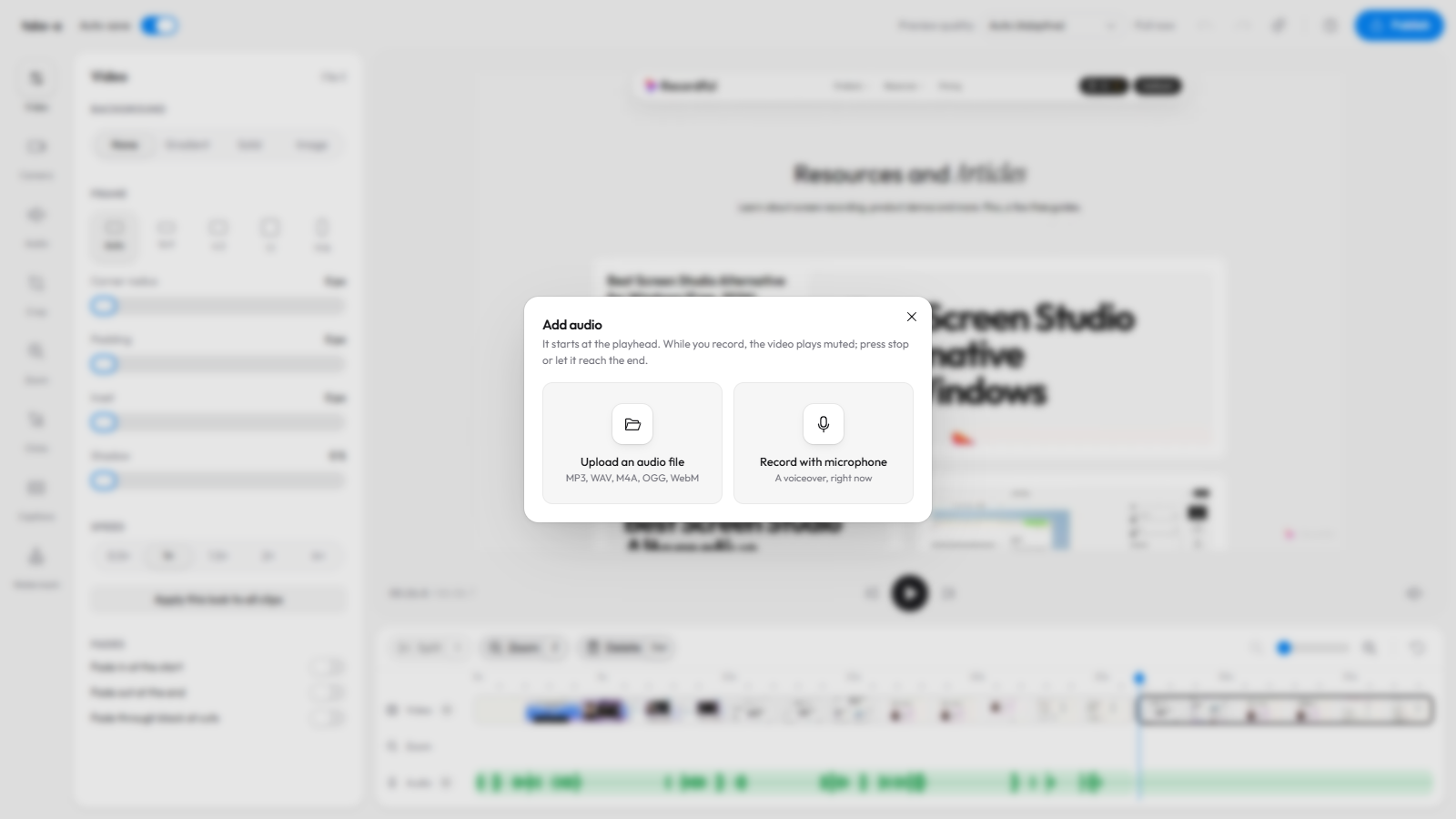
On the timeline, click the + beside Audio. Choose Record with microphone to talk now, or Upload an audio file (MP3, WAV, M4A, OGG or WebM) if you recorded the narration elsewhere.
The first time, your browser asks to use the microphone. Allow it.
Step 4: Talk while the video plays
The video plays from the playhead with its own sound muted, so you hear only yourself and see exactly what you are describing. A red mark beside Audio shows it is recording.
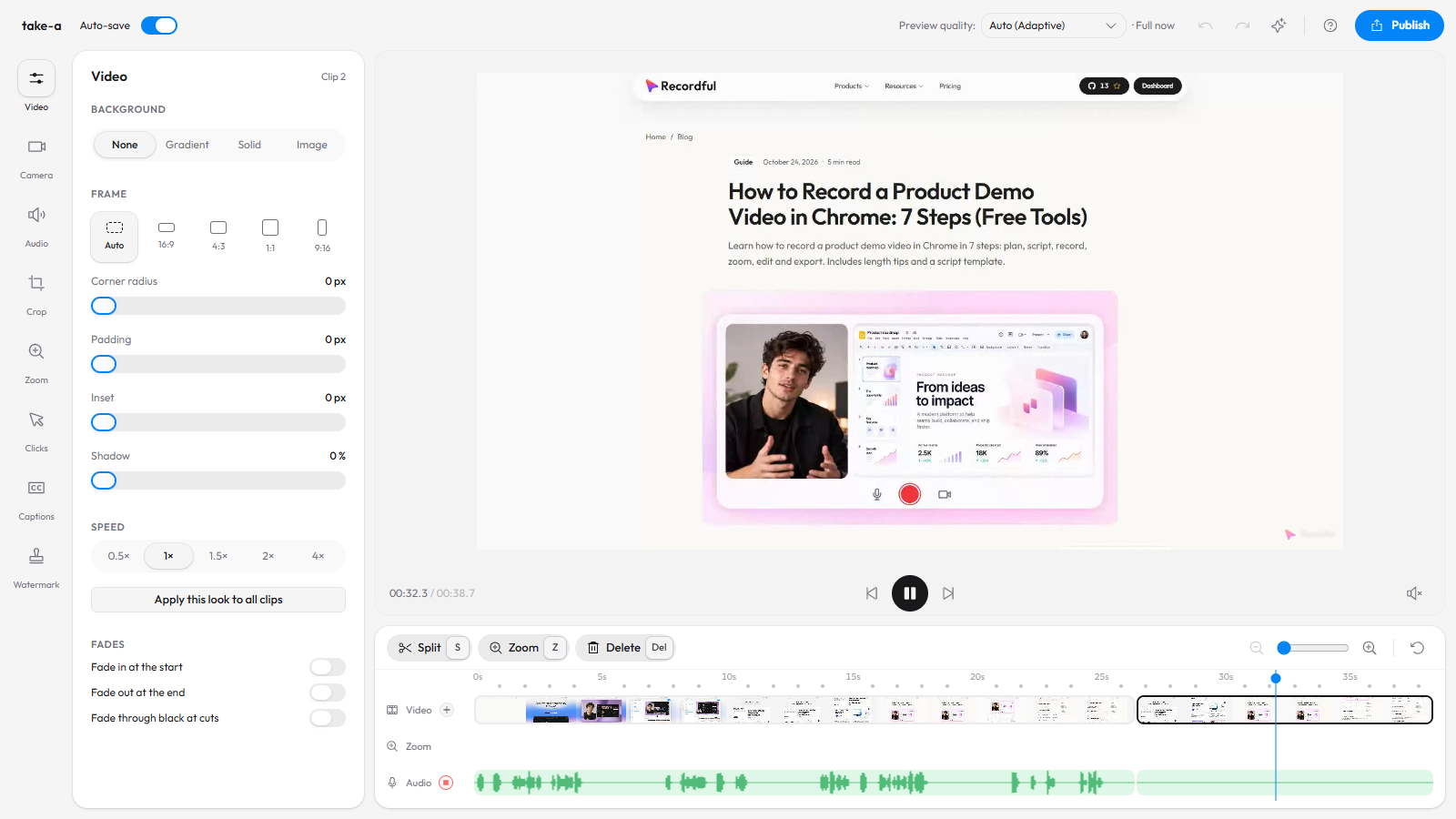
Step 5: Stop
Press stop, pause the video, or let it play to the end. The take appears on the timeline as Voiceover, starting where you spoke it.
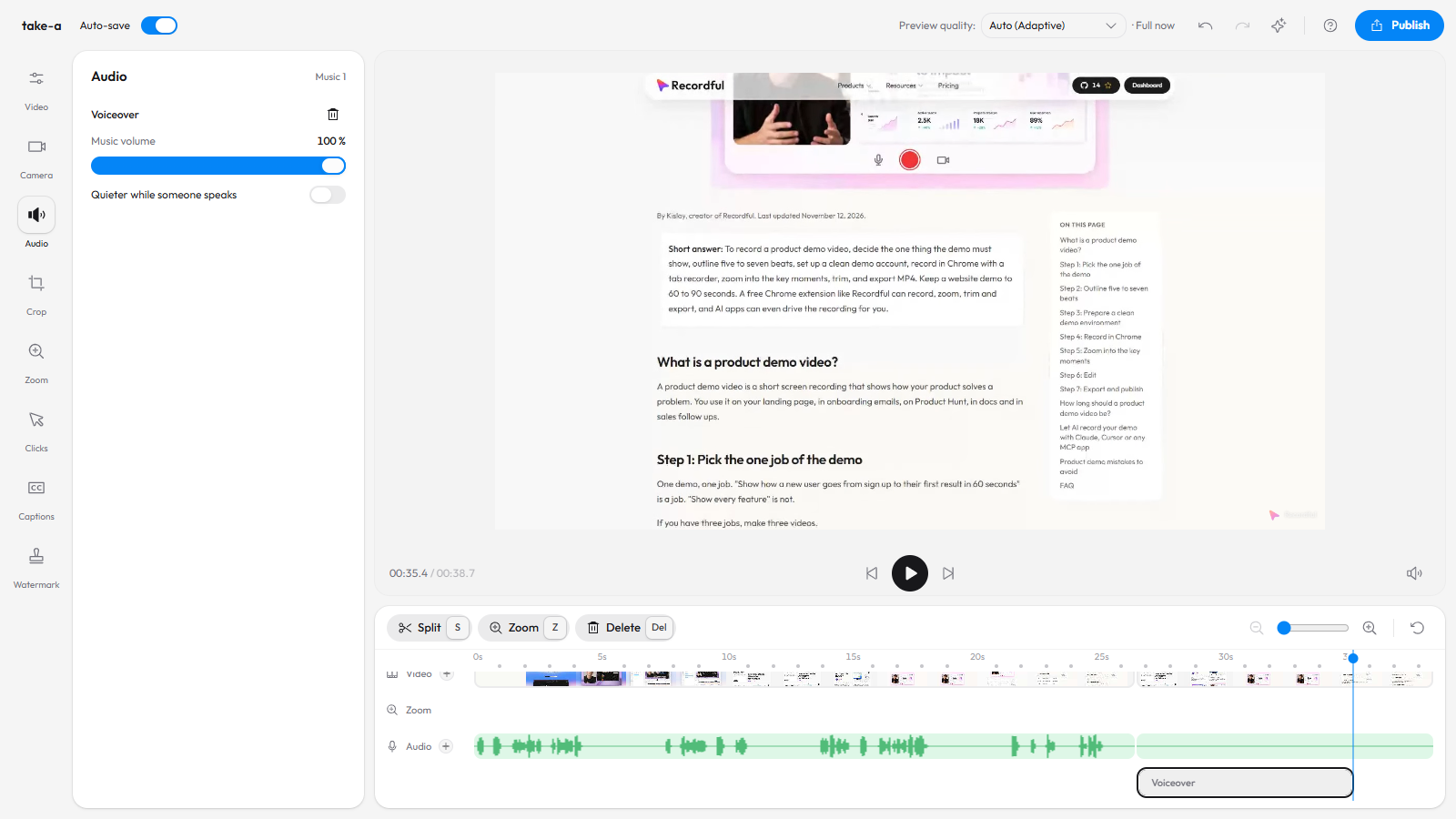
Step 6: Balance it with the original sound
Select the voiceover to set its volume. If the clip under it already has sound, select that clip and lower its Clip volume in Audio.
On Pro, Noise and echo cleans up a laptop microphone. See how to remove filler words, pauses and noise.
Step 7: Export
Click Publish → Download locally and export MP4 or WebM, up to 4K. The voiceover is mixed into the file.
Tips for a better voiceover
- Write the script first. One sentence per on-screen action is plenty.
- Record in short takes. Do one section, stop, move the playhead, do the next. It's easier than one perfect take.
- Leave a beat before each click. Say what's about to happen, then let it happen.
- Use a headset or a USB mic if you have one. Distance matters more than price: keep the mic close.
Frequently asked questions
Can I add a voiceover after recording my screen? Yes. In Recordful's editor, click the + beside Audio, choose Record with microphone and talk while the video plays muted. The narration lands on the timeline where you spoke it.
Do I have to record the screen again? No. The voiceover is recorded on its own and placed over the video you already have.
Can I upload a voiceover I recorded somewhere else? Yes. Choose Upload an audio file and pick an MP3, WAV, M4A, OGG or WebM file.
What happens to the original audio? It stays. Select the clip and lower its Clip volume in the Audio panel.
Is it free? Yes. Recording a voiceover, uploading audio and exporting are free and need no account.
Does it work in the desktop app? Yes. The Recordful desktop app has the same Add audio button in its timeline toolbar, with Record with microphone.
To join several recordings first, see how to combine screen recordings into one video.