By Kislay, creator of Recordful. Last updated November 19, 2026.
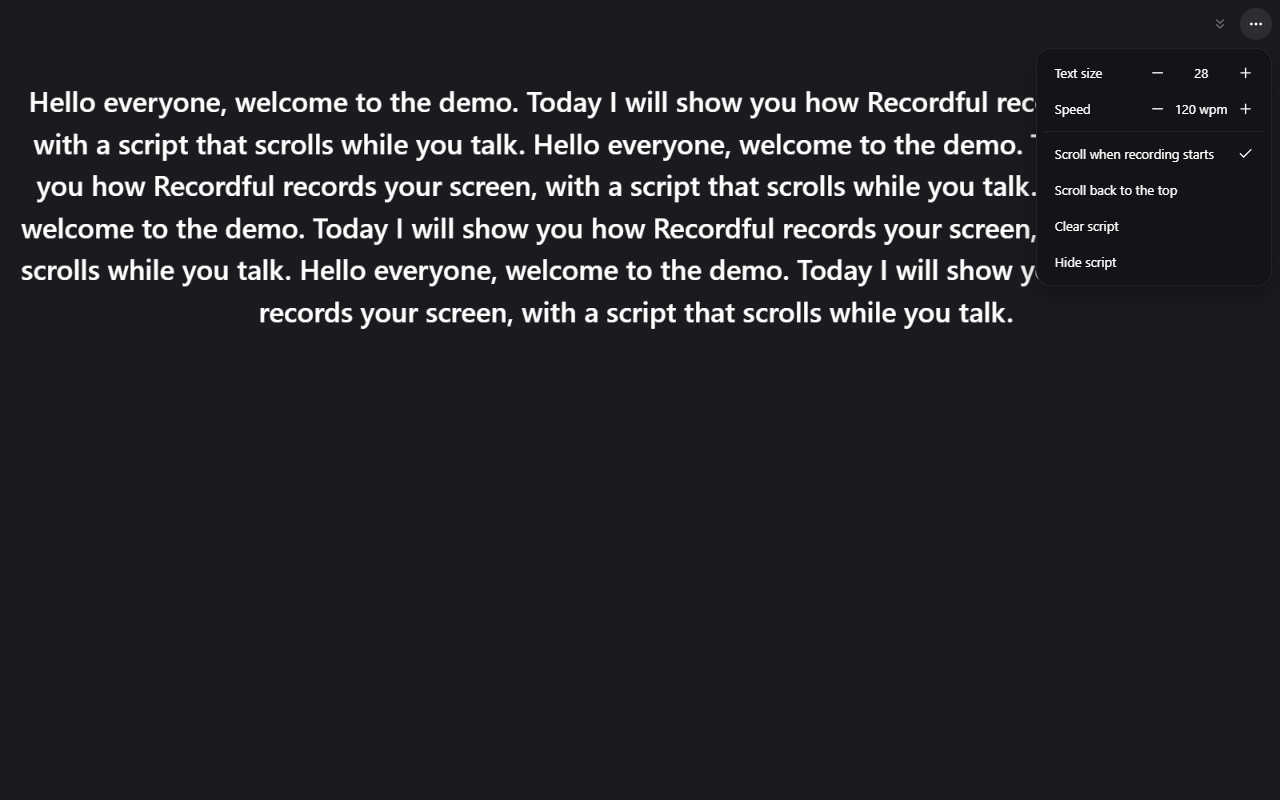
Short answer: A teleprompter screen recorder shows your script in a small window that scrolls while you record, and keeps that window out of the video. In Recordful, open the extension's popup and turn on Teleprompter. Paste your script, set the text size and the speed in words per minute, and press record. The script starts scrolling when the recording starts and stops when you pause. It stays out of the video when you record a tab, a window, an area or just your camera. It's free and needs no account.
Why use a teleprompter for a screen recording?
Screen recordings ask you to do two things at once: click through something and explain it. Most people either rush the clicks or lose the sentence. A teleprompter takes the second job off your mind. You read the words; your attention goes to the screen.
It helps most with:
- Product demos and launch videos, where every sentence counts
- Course lessons and tutorials, where you need to cover each point in order
- Videos in a second language, where reading is easier than making it up
- Sales and onboarding videos you will record many times
How do you stop the script from showing in the recording?
This is the hard part. A script in a normal window, a sticky note or a second tab ends up in the video the moment you share the whole screen.
Recordful opens the script in a floating window that sits above the page but isn't part of what's recorded:
| What you record | Does the script show in the video? |
|---|---|
| A tab | No |
| A window | No |
| A custom area of the page | No |
| Just your camera | No |
| The entire screen | Recordful closes the teleprompter when you start, so it never appears |
Your script is always saved, so closing the window loses nothing. Open it again for the next take.
How to use Recordful's teleprompter
- Install Recordful from the Chrome Web Store. It also runs in Edge and Brave.
- Open the Recordful popup and switch on Teleprompter. The first time, a short note explains how it works.
- Click Write or paste your script and add your text.
- Set Text size (20 to 72) and Speed (80 to 240 words per minute, 120 to start).
- Keep Scroll when recording starts on, and move the window where your eyes can reach it, close to the camera if you're on it.
- Press record. A countdown shows in the window, then the script starts to scroll.
While you record:
- Pause the recording and the script stops. Resume and it carries on.
- Drag the text to scroll back or forward by hand if you get ahead or fall behind.
- Start or pause scrolling from the window's play button.
- Use Scroll back to the top for a second take.
What speed should you use?
Most people speak 120 to 160 words a minute when they explain something. Recordful starts at 120, which suits a demo where you also click.
| What you're recording | Try this speed |
|---|---|
| A demo with lots of clicks | 100 to 120 wpm |
| A tutorial or lesson | 120 to 140 wpm |
| Talking to camera, few clicks | 140 to 160 wpm |
Do a 20-second test, then change it in steps of 10. If you keep catching up to the bottom, slow it down. If you wait for the words, speed it up.
How to write a script that doesn't sound read
- One sentence per action. "Click Members. Then Invite." Short lines are easy to read and to say.
- Write how you talk. Use "you" and "we", contractions, and plain words.
- Leave a blank line where you click, so you know to stop talking and do it.
- Read it out loud once before you record. Fix anything you trip over.
- Bigger text than you think. You'll glance at it, not stare at it.
If a sentence still comes out wrong, keep going. You can cut it in the editor afterwards.
After recording: clean up the take
When you stop, Recordful's editor opens. Trim the start and end, cut a fumbled sentence, and let auto-zoom move in on your clicks, all free. If you'd rather not read and click at the same time at all, record the screen first and add a voiceover afterwards while the video plays.
With Recordful Pro you can also cut filler words and long pauses, and add captions. See how to remove filler words from a screen recording.
Teleprompter in the desktop app
The Recordful desktop app has a teleprompter too, on macOS and Windows. Turn it on from the recording options. The script opens in its own window that's kept out of the recording, scrolls with the take and pauses when you pause.
Frequently asked questions
Is there a free teleprompter screen recorder? Yes. Recordful's Chrome extension has a built-in teleprompter, free and without an account. Turn it on in the popup, paste your script and record.
Will the teleprompter show up in my recording? Not when you record a tab, a window, an area or just your camera. If you share your entire screen, Recordful closes the teleprompter when you start, so it can't appear in the video.
Can I change the teleprompter speed? Yes. Set it from 80 to 240 words per minute, in steps of 10. You can also drag the text to scroll by hand.
Does the teleprompter pause when I pause the recording? Yes. The script stops when you pause and carries on when you resume.
Is my script saved? Yes. The script, text size and speed are saved, so the next take starts where you left them.
Can I use a teleprompter while recording my camera? Yes. Record just your camera, or your screen with your camera in a corner, and place the teleprompter window near the camera so your eyes stay close to the lens.