By Kislay, creator of Recordful. Last updated October 25, 2026.
Short answer: Press Shift + Ctrl + Show windows, select Screen record, choose full screen, part of the screen or a window, and click to start. Stop with the button at the bottom right or Search + Shift + X. The video is saved as a .webm file in your Downloads folder. When you want to trim it, zoom in on your clicks, add a background or export an MP4 up to 4K, record with a free Chrome extension like Recordful instead.
How do I screen record on a Chromebook with the built-in tool?
ChromeOS has a screen recorder built in, called Screen capture. From Google's Chromebook Help page "Take a screenshot or record your screen", checked on October 25, 2026:
- Press Shift + Ctrl + Show windows.
- At the bottom of the screen, select Screen record.
- Pick what to record: full screen, partial screen or window.
- Open Settings at the bottom if you want your camera, your audio or your clicks in the video (see below).
- Start the recording:
- Full screen: click anywhere on the screen.
- Partial screen: drag to select the area, then choose Record video (or Record GIF).
- Window: click the window you want.
- To stop, select Stop recording at the bottom right, or press Search + Shift + X.
You can also open Screen capture from the quick settings: select the time at the bottom right, then Screen capture.
Which settings does Chromebook Screen capture have?
From the same Google help page, Settings in Screen capture lets you:
- Record audio: choose device audio, your microphone, or both.
- Record your camera: turn on Front Camera to put your webcam in the video.
- Show clicks and keys: show mouse clicks, touch gestures and key combos with modifier keys while you record.
- Choose where files go: select a folder instead of Downloads.
Where do Chromebook screen recordings go?
To your Downloads folder, unless you picked another folder in Settings. Google's help page says videos are saved as .webm files, and partial-screen GIFs as .gif. GIFs don't include audio or your camera.
Open the Files app and look in Downloads to play, rename or share the recording.
When should I use something more than the built-in recorder?
Screen capture is quick and needs no install, which makes it the right pick for a fast clip. You get the recording as you made it. If you want to work on the video after you stop, a recorder with an editor saves you a trip through another app. Typical reasons:
- Cut the mistakes. Trim the start and end, or cut out the part where you went the wrong way.
- Make small text readable. Zoom in on the button or the line you're pointing at, so it's clear on a phone or a projector.
- Get an MP4. Many upload forms and learning systems ask for MP4 rather than .webm.
- Read from a script while you record.
- Record one tab of Chrome, not the whole screen, so notifications and other windows stay out of the video.
How do I record and edit on a Chromebook with Recordful?
Recordful is a free Chrome extension, and ChromeOS is one of its supported systems (Chrome 110 or newer). Recording, editing and export need no account, and nothing is uploaded unless you choose to share a link.
- Open the Recordful page on the Chrome Web Store and click Add to Chrome.
- Click the puzzle icon next to the address bar and pin Recordful.
- Go to the tab you want to record and click the Recordful icon.
- Pick Tab, Screen, Window or Area, or record just your camera.
- Turn on your microphone and camera if you want them, then click record. There's no time limit.
- Stop. The editor opens in Chrome with your recording.
- Trim and cut, check the zooms, then click Publish → Download locally for an MP4 saved to your Chromebook.
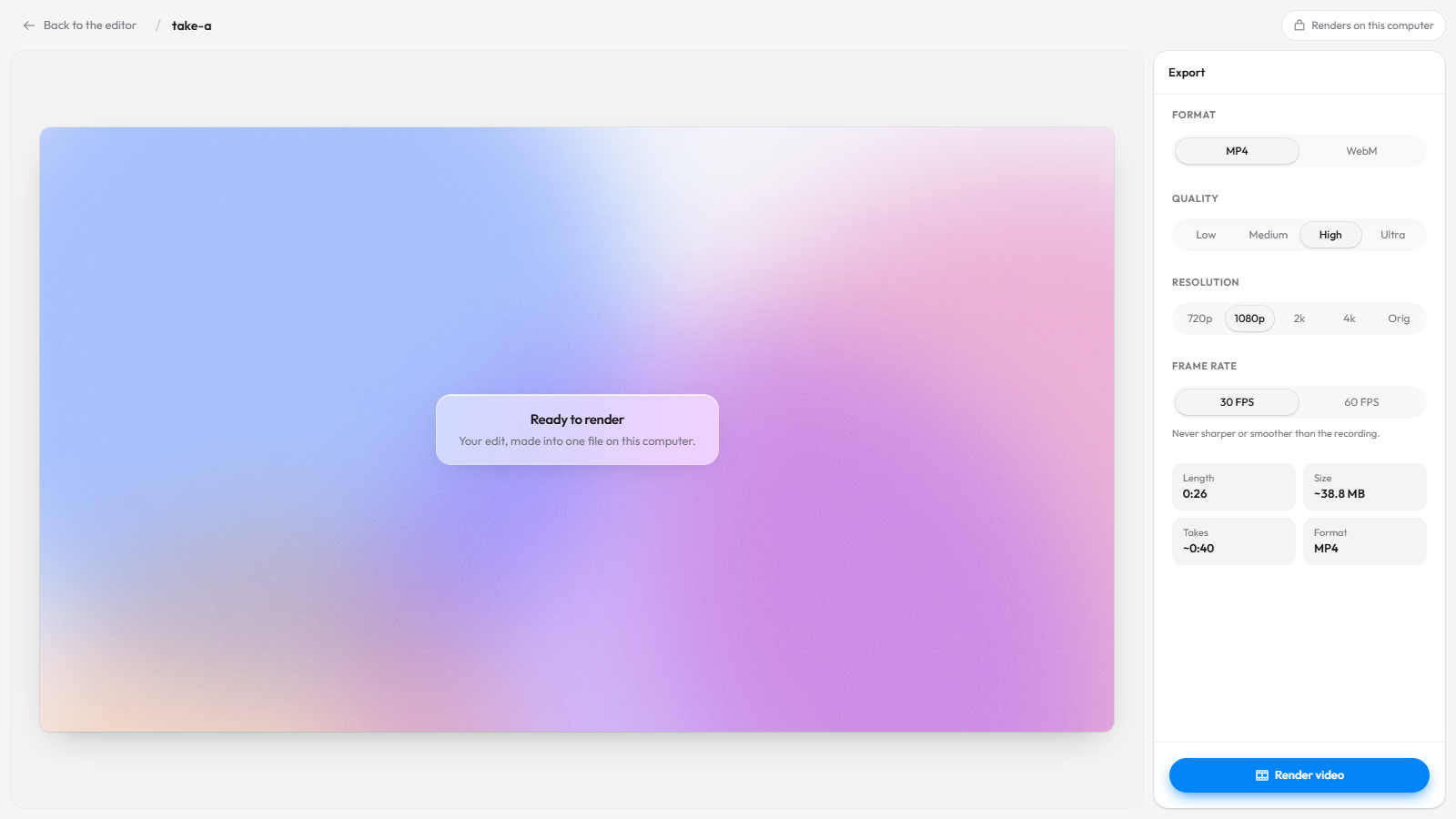
What can you do in Recordful's editor on a Chromebook?
All of this is free and runs in Chrome on your Chromebook:
- Trim, cut, split and speed up slow parts like typing or loading.
- Auto-zoom on clicks: the video zooms in where you clicked. Add your own zooms or remove any.
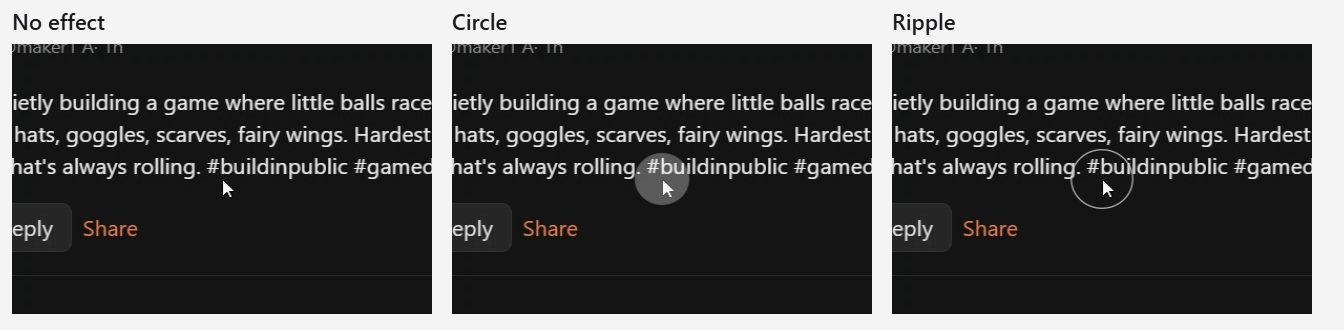
- Click effects and click sounds so viewers see every click.
- Backgrounds and padding around your screen, with rounded corners and a shadow.
- Camera layouts: move, resize and reshape your webcam, or hide it in parts of the video.
- Export as MP4, WebM or GIF, up to 4K.
A small Recordful mark is on new recordings. You can turn it off for free in the editor.
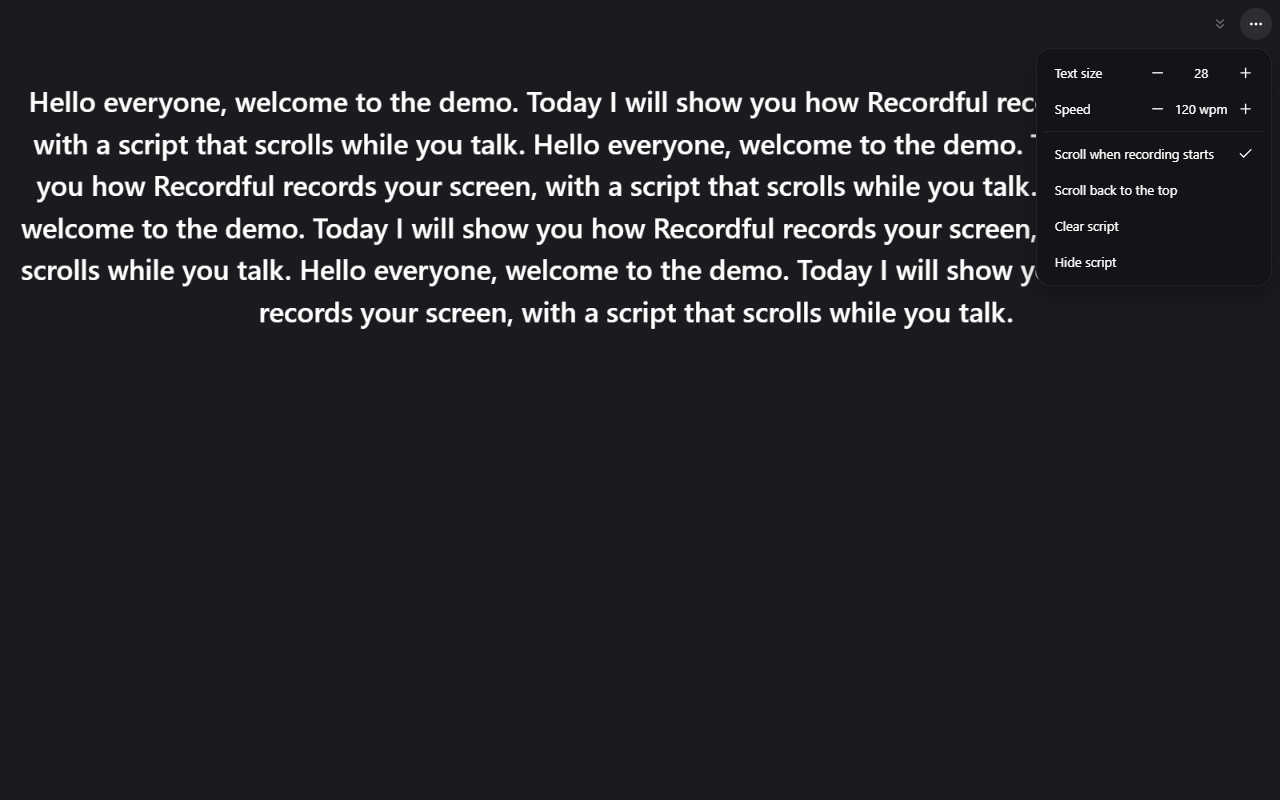
While you record, Recordful also has a floating teleprompter for your script, and you can draw on the screen or blur private details like names and emails.
More on making the video look good: how to make a screen recording look professional and the free screen recorder with auto-zoom.
Chromebook Screen capture or Recordful: which should I use?
Use both, for different jobs:
| You want to | Use |
|---|---|
| Grab a quick clip or GIF with no install | Screen capture (Shift + Ctrl + Show windows) |
| Record one Chrome tab only | Recordful |
| Trim, cut and speed up parts | Recordful |
| Zoom in on clicks automatically | Recordful |
| Read from a teleprompter | Recordful |
| Export an MP4 up to 4K | Recordful |
| Share a link with a transcript and comments | Recordful Pro |
How do I share a Chromebook screen recording?
For a file, send the MP4 by email, upload it to Google Drive, or hand it in through your school's learning system.
For a link, Recordful Pro uploads while you record and gives each video a watch page with a clickable transcript, captions in 10 languages, comments and a view count. Viewers watch in the browser with no account. Pro is $19 a month, or $108 a year ($9 a month), with a 14-day free trial, and one price covers the whole workspace. See how to share a screen recording with a link.
Frequently asked questions
What is the shortcut to screen record on a Chromebook? Press Shift + Ctrl + Show windows, then select Screen record. To stop, press Search + Shift + X or select Stop recording at the bottom right.
Can a Chromebook record the screen with audio? Yes. In Screen capture's Settings, choose device audio, your microphone, or both.
Can I record my webcam on a Chromebook? Yes. Turn on Front Camera in Screen capture's Settings. In Recordful you can also move, resize and reshape the camera after recording.
Where are screen recordings saved on a Chromebook? In your Downloads folder as .webm files, unless you chose another folder in Screen capture's Settings.
How do I get an MP4 from a Chromebook screen recording? Record with Recordful and choose MP4 when you export. The video is made on your Chromebook, up to 4K.
How do I screen record for longer on a Chromebook? Recordful has no time limit on recordings saved to your Chromebook. Keep at least 1 GB of free storage before a long recording.
Does Recordful work on a school Chromebook? It needs Chrome 110 or newer and permission to install extensions. If your school blocks extensions, ask your admin to allow Recordful.
Do I need an account to use Recordful? No. Recording, editing and exporting are free with no account.
More for Chromebook users: Loom alternative for Chromebook and Screen Studio alternative for Chromebook.
See Recordful Screen Recorder and the editor.