By Kislay, creator of Recordful. Last updated November 16, 2026.
Short answer: Record your screen as usual, open the recording in Recordful's editor, and in Video → Frame pick 9:16. The recording sits on a tall canvas with a background of your choice. Crop to the part that matters, let auto-zoom move in on your clicks so small text is readable on a phone, add captions, and export an MP4 at 4k so the file is up to 2160 pixels tall. TikTok, Instagram Reels and YouTube Shorts all take 9:16. Recording, the 9:16 canvas, cropping, zoom and export are free.
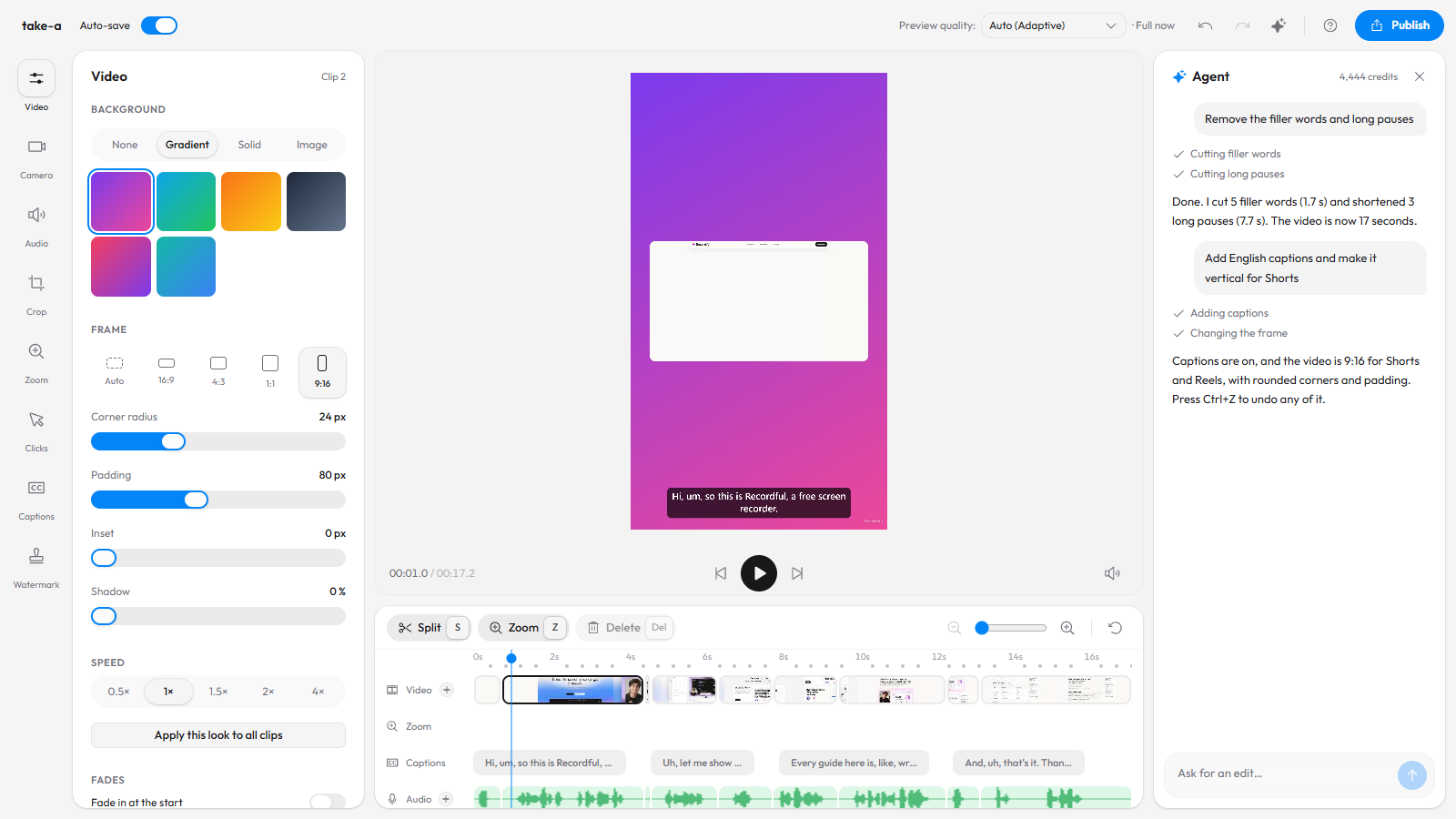
A screen recording made vertical in Recordful's editor, with captions.
Why can't you just upload a normal screen recording?
Screens are wide (16:9) and phones are tall (9:16). Upload a wide recording to a vertical feed and it shows as a thin strip in the middle, with tiny text nobody can read. A vertical screen recording fixes two things: it fills the phone's screen, and it shows the interface big enough to follow.
Step 1: Record with the phone in mind
Install Recordful from the Chrome Web Store, or the desktop app for macOS, Windows and Linux.
A few things make the vertical version much better:
- Record a narrow area. In the popup, choose Custom area and drag a tall rectangle around the part of the page you'll show. Less empty space, bigger interface.
- Or make the window narrow. Many sites switch to their mobile layout when the window is narrow, which already fits a tall frame.
- Zoom the browser in to 125% or more, so text survives on a phone screen.
- Keep the action in the middle. Menus at the far edges are hard to keep in a tall frame.
- Keep it short. One idea per video.
Turn on your microphone and camera if you want to talk to camera, then record.
Step 2: Switch the canvas to 9:16
When you stop, the editor opens. Open Video and under Frame choose 9:16. The canvas becomes tall, and your recording sits on it with the background you pick: a gradient, a colour, a picture or your own image. Add padding, rounded corners and a shadow if you like.
The canvas also comes in 16:9, 4:3 and 1:1, so you can export a wide version for YouTube and a square one for a feed from the same recording.
Step 3: Crop to what matters
Open Crop and drag the box around the part of the screen you're showing. The Crop shape row has a 9:16 shape too, so the crop can fill the whole tall canvas. Hold Shift on a corner to keep the shape while you resize it.
Step 4: Zoom in on every click
A wide screen on a phone is small. Zoom is what makes a vertical screen recording readable.
Recordful's auto-zoom knows where you clicked and moves in on those moments, then back out. Open Zoom to set how long a zoom holds after the last click and how close clicks must be to share one zoom. Add a manual zoom anywhere else. Click effects show where each click lands. All free. See how to add auto-zoom for free.
Step 5: Add captions
Most people scroll vertical video with the sound off. Captions keep them watching.
Open Captions and click Generate captions. Pick the language or let it detect one of 10. Then:
- Put them at the Top or Bottom, out of the way of the app's buttons.
- Make them bigger than you would for a wide video.
- Choose a Spoken word colour so each word lights up as you say it.
- Pick an animation: fade, rise or pop.
Captions are part of Recordful Pro, $19 a month or $108 a year for the whole workspace. Pro also cuts filler words and long pauses, which matters in a 30-second video. See how to remove filler words from a screen recording.
Step 6: Export the MP4
Click Publish → Download locally.
- Format: MP4. TikTok, Reels and Shorts all take it.
- Resolution: the number is the height of the file. For a vertical video, pick 4k for a file up to 2160 pixels tall, or Orig to keep the full size.
- Frame rate: 30 FPS, or 60 FPS for fast scrolling and animation.
Then upload the file in the TikTok, Instagram or YouTube app.
Do it in one sentence with the Recordful Agent
With Recordful Pro you can also type what you want. Open the Agent in the editor (Shift+S) and write:
Make it 9:16 with captions for a Short
It transcribes the speech, adds captions and changes the canvas to 9:16. Each change happens on the timeline, and Ctrl+Z undoes it. See the AI screen recording editor.
Vertical screen recording checklist
| Check | Why |
|---|---|
| Recorded a narrow area or window | Bigger interface in the frame |
| Browser zoomed to 125% or more | Text readable on a phone |
| Canvas set to 9:16 | Fills the phone screen |
| Auto-zoom on clicks | The viewer sees what you click |
| Captions at the top or bottom, large | Works with the sound off |
| Exported MP4 at 4k or Orig | Sharp after the app compresses it |
Frequently asked questions
How do I make a screen recording vertical? Open it in Recordful's editor, go to Video, and under Frame choose 9:16. Then crop to the important part, zoom in on clicks and export an MP4.
What size is a vertical video for TikTok, Reels and Shorts? All three use the 9:16 shape, most often 1080 by 1920 pixels. In Recordful, export at 4k or Orig so your file is at least that sharp.
Can I make a vertical video from a horizontal screen recording? Yes. Switch the canvas to 9:16 and the recording sits on a tall background. Crop it, or use auto-zoom, so the part that matters fills more of the frame.
Can I record vertically from the start? Yes. Choose Custom area in the Recordful popup and drag a tall rectangle, or record a narrow browser window.
How do I add captions to a vertical screen recording? In Recordful's editor, open Captions and click Generate captions, then place them at the top or bottom and colour the spoken word. Captions are part of Recordful Pro.
Is it free to make a vertical screen recording? Recording, the 9:16 canvas, crop, auto-zoom, click effects and MP4 export up to 4K are free in Recordful. Captions and the Agent are part of Pro.