By Kislay, creator of Recordful. Last updated November 18, 2026.
Short answer: The best free screen recorder for teachers is Recordful. It's a Chrome extension that works on school Chromebooks, Windows, Mac and Linux, records lessons with no time limit and no video cap, needs no account for you or your students, and exports an MP4 up to 4K you can upload to any learning system. While you record, a teleprompter holds your lesson notes and you can draw on the screen. Screencastify, Loom and ScreenPal are popular in schools too, with free plans capped at 30, 5 and 15 minutes per recording.
I built Recordful. Every fact about the other tools below comes from that tool's own website, checked on November 18, 2026.
What do teachers need from a screen recorder?
- Long enough for a lesson. A walkthrough of a worked problem or a slide deck often runs past 15 minutes.
- Works on school Chromebooks. Many classrooms run on ChromeOS, where Windows and Mac apps don't install.
- Easy for students. If students record their own explanations, an account per student is one more thing to manage.
- A file you can upload. Learning systems and Google Drive take MP4.
- Room for many videos. A course is dozens of short videos, not five.
Screen recorders for teachers compared
| Recordful | Screencastify Free | Loom Starter | ScreenPal Free | |
|---|---|---|---|---|
| Price | Free | $0 | Free | Free |
| Length per recording | No limit | 30 minutes | 5 minutes | 15 minutes |
| Number of videos | No limit | 10 | 25 per person | 10 hosted videos |
| Quality | Export up to 4K | Up to 1080p | Up to 720p | 720p playback |
Sources: screencastify.com/pricing, loom.com/pricing and screenpal.com/plans on November 18, 2026. Recordful's limits are its own.
1. Recordful: the best free screen recorder for teachers
Recordful records and edits on your own computer. Recording, editing and export are free, with no account, no time limit and no cap on how many videos you make. Nothing is uploaded unless you choose to share a link.
Record a lesson the way you teach it:
- Record a tab (your slides or a website), an area, a window, the whole screen or just your camera, with your microphone.
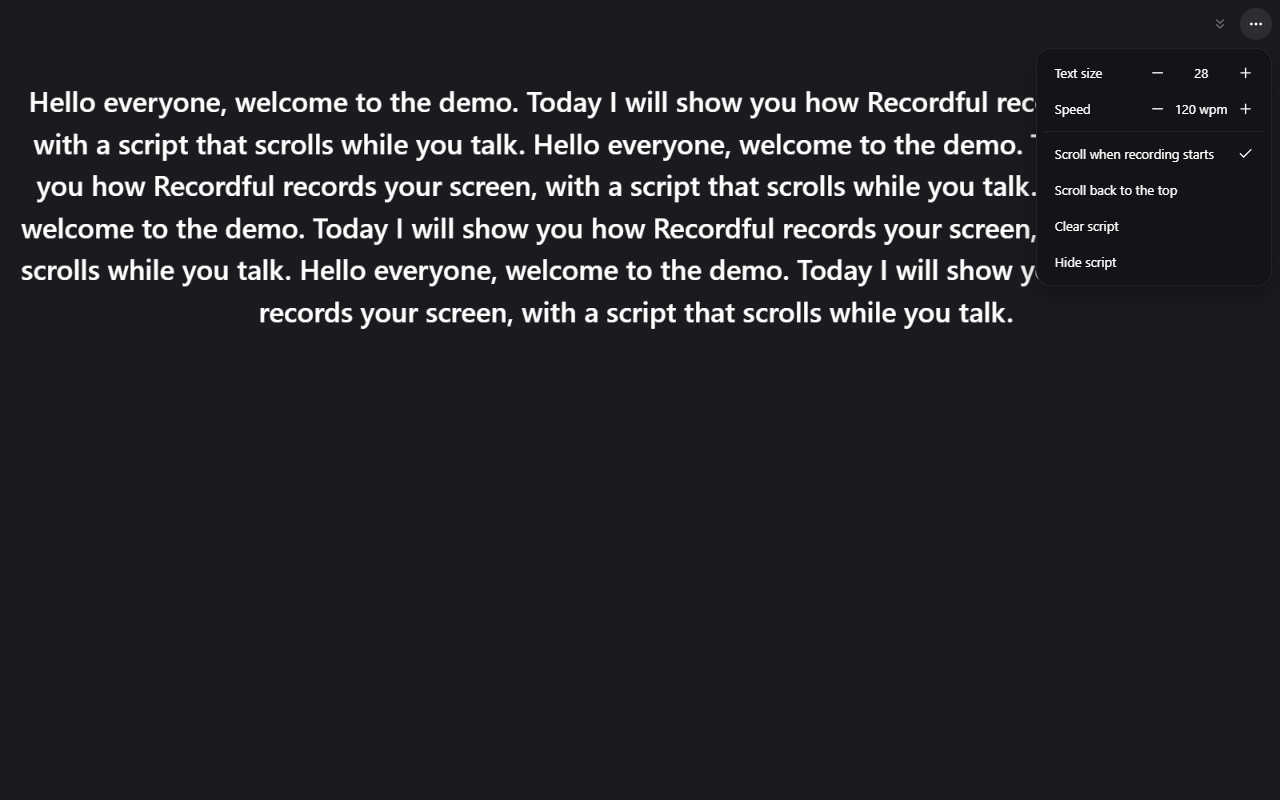
- A floating teleprompter scrolls your lesson notes while you record, and stays out of the video.
- Draw on the screen to circle or underline as you explain, and blur student names or emails.
- Click effects and click sounds show students exactly where you clicked.
Edit it in minutes:
- Trim, cut and speed up the slow parts.
- Auto-zoom on clicks, so small text is readable on a phone or a projector.
- Camera layouts: put your face in a corner, or full screen for the introduction.
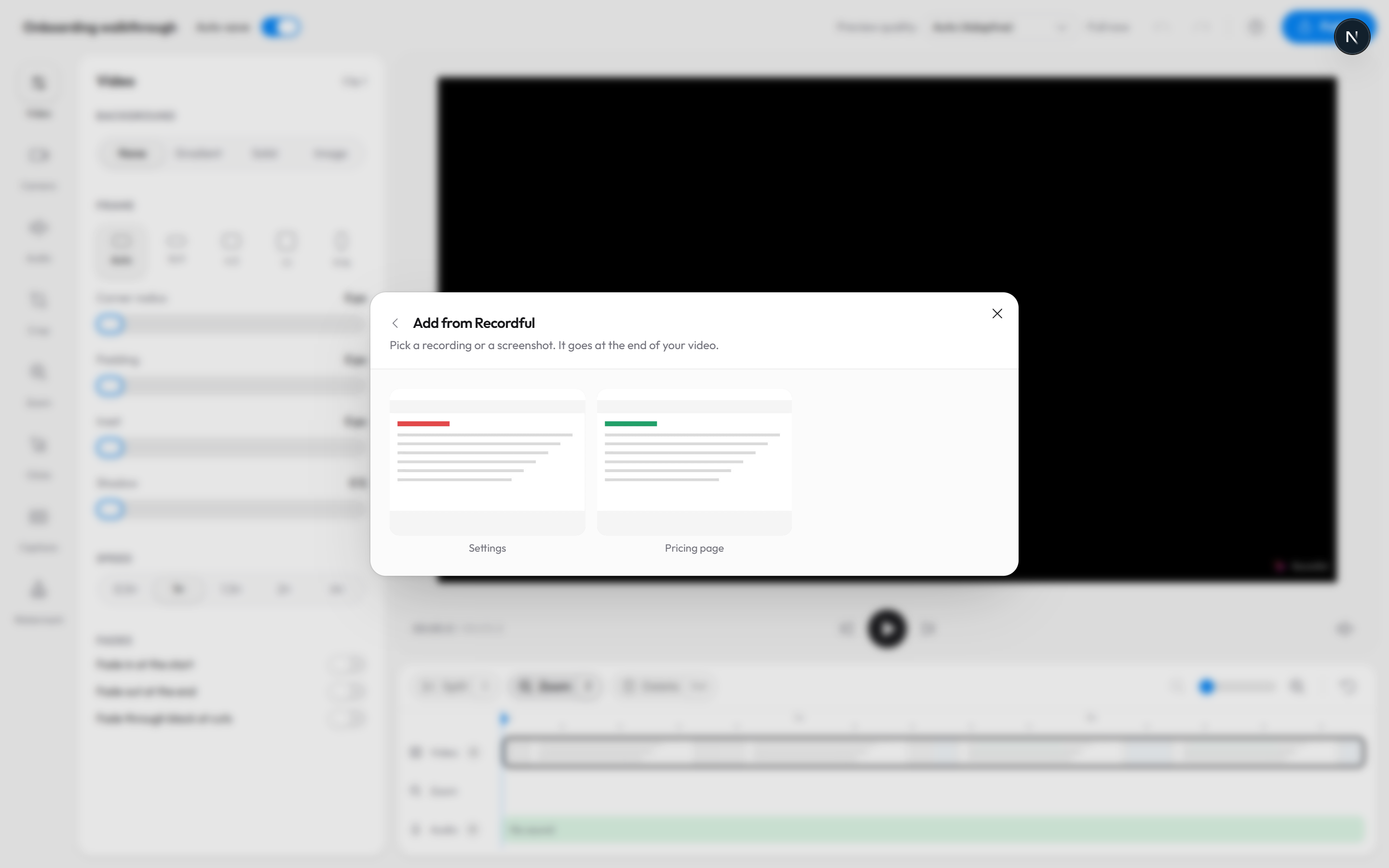
- Add clips to join recordings into one lesson, and record a voiceover over a part you want to explain again. See how to add a voiceover.
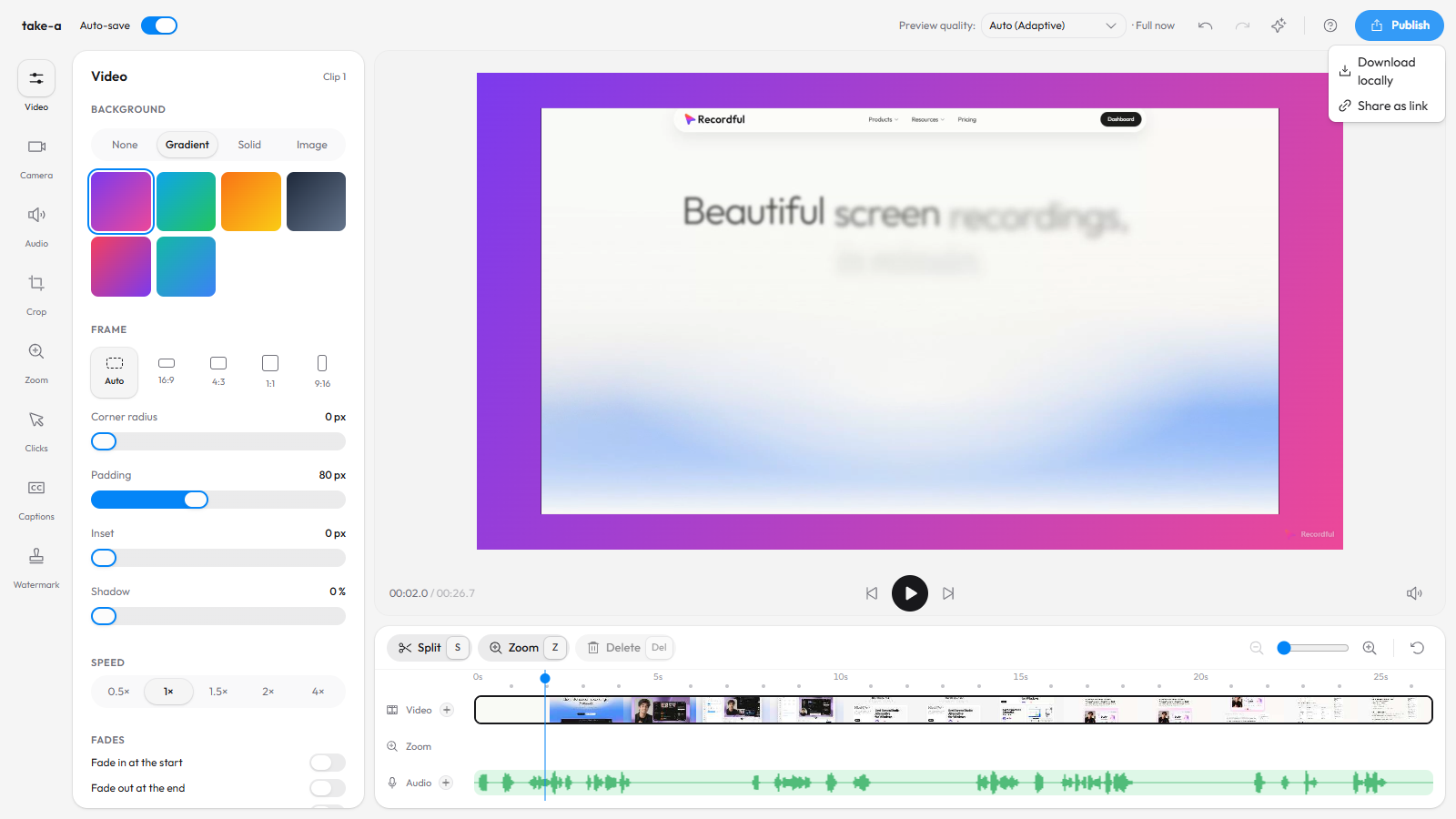
- Export as MP4 or WebM, up to 4K, and upload the MP4 to your learning system.
A small Recordful mark is on new recordings. You can turn off the Recordful mark for free in the editor, or put your school's logo in its place.
For students: the extension needs no account and no email address, and recordings stay on the student's own computer until they choose to hand them in.
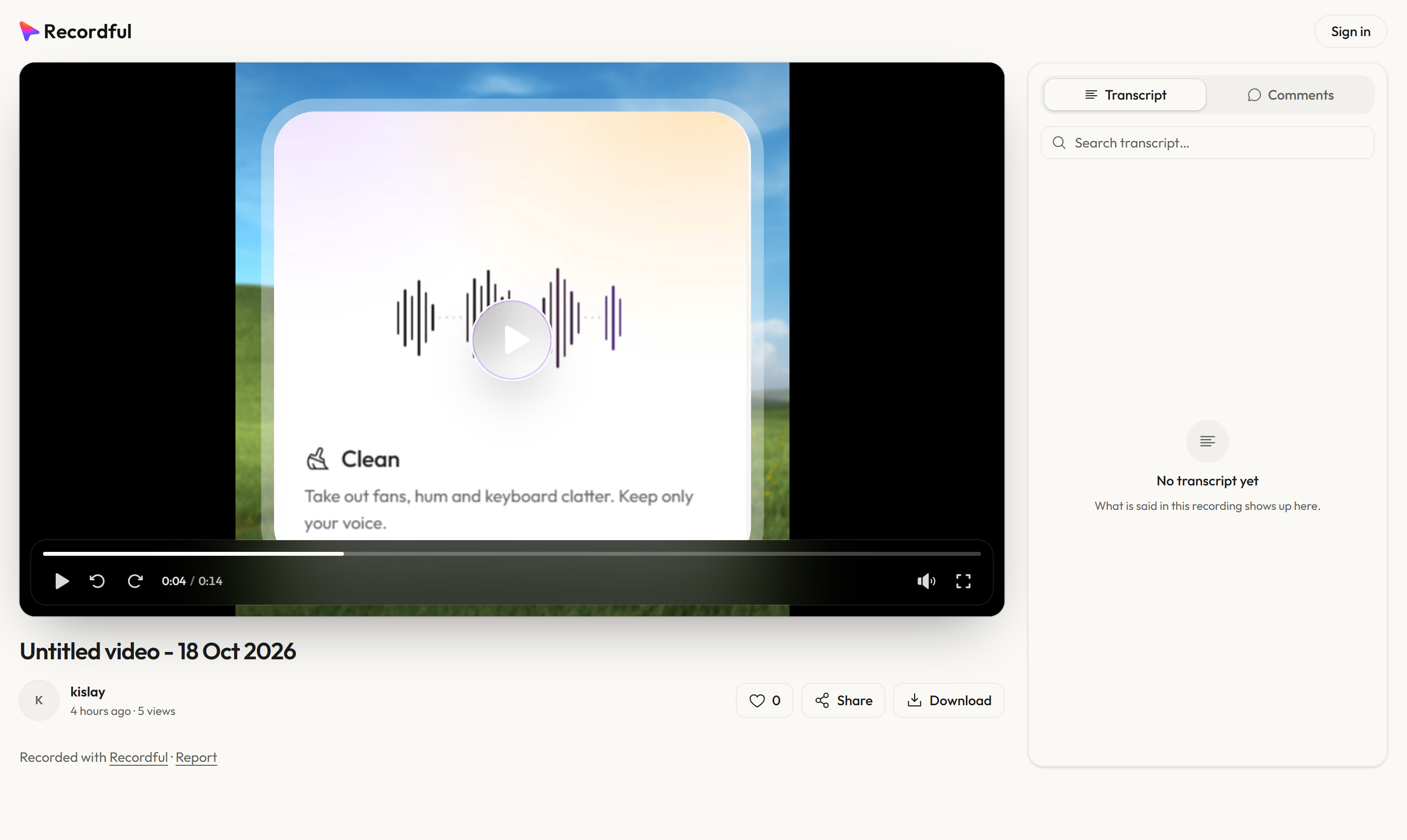
Recordful Pro, if you want links instead of files: a watch page with a clickable transcript, captions in 10 languages, comments and view counts, links that only your workspace can open or that need a password and expire on a date, and Instant Mode, which uploads while you record and copies the link when you stop. Pro is $19 a month, or $108 a year ($9 a month), with a 14-day free trial. It's one price for the whole workspace, so a department can share it without paying per teacher.
2. Screencastify
Screencastify is a Chrome extension widely used in schools. From screencastify.com/pricing on November 18, 2026:
| Plan | Billed yearly | Billed monthly | Limits |
|---|---|---|---|
| Free | $0 | $0 | 10 videos, 30 minutes per video, up to 1080p, "Has Castify watermark" |
| Starter | $7 per user a month | $18 per user a month | Unlimited videos, 60 minutes per video |
| Pro | $10 per user a month | $24 per user a month | Unlimited videos, 180 minutes per video, up to 4K |
| Enterprise & EDU | Custom | Custom | Custom length and quality |
Pro lists "YouTube for EDU (Education users only)" and "LMS grade sync", and Enterprise & EDU adds "Student restrictions" and "Admin analytics". Compare it in Recordful vs Screencastify.
3. Loom
From loom.com/pricing on November 18, 2026, the free Starter plan allows 25 videos per person, screen recordings up to 5 minutes and quality up to 720p. Business is $18 per user a month.
For schools, Atlassian's licensing page on the same day lists Loom Business and Business + AI at 75% off list price for "eligible collegiate students, graduate students, and teachers" through its educator license request form, and 50% off for academic institutions. Loom's help page lists its desktop app as available on Mac and Windows only. See Loom alternative for Chromebook.
4. ScreenPal
From screenpal.com/plans on November 18, 2026, the free plan has a "15 minute recording limit", 10 hosted videos, 5 video quizzes and 720p playback. Its education page, screenpal.com/plans/education, offers "Special K–12 & Higher Education Pricing" with Deluxe Edu, Max Edu and Team Education plans, the last one for 10 or more creators. More in ScreenPal alternative.
5. ChromeOS Screen capture
Every Chromebook has a recorder built in. From Google's Chromebook Help on November 18, 2026: press Shift + Ctrl + Show windows, select Screen record, and stop with Search + Shift + X. You can add the front camera and microphone, and videos are saved to Downloads as .webm files. When you need an MP4 for your learning system or want to cut a mistake, record with Recordful instead. Step by step: how to screen record on a Chromebook.
Which screen recorder should a teacher use?
| You want to | Use |
|---|---|
| Record lessons longer than 30 minutes for free | Recordful |
| Let students record with no account | Recordful |
| Make more than 25 videos for free | Recordful |
| Read lesson notes from a teleprompter | Recordful |
| Export an MP4 up to 4K for your learning system | Recordful |
| Share a link with captions and a transcript | Recordful Pro |
| One price for the whole department | Recordful Pro |
How to record a lesson with Recordful
- Add Recordful from the Chrome Web Store and pin it next to the address bar.
- Open your slides or the page you're teaching from.
- Click the Recordful icon, pick Tab and turn on your microphone and camera.
- Turn on the teleprompter if you want your notes in front of you.
- Record. There's no time limit.
- Stop. The editor opens. Trim the start and end and check the zooms.
- Click Publish → Download locally for an MP4, then upload it to your class.
Frequently asked questions
What is the best free screen recorder for teachers? Recordful. It records with no time limit and no video cap, needs no account, works on school Chromebooks, and exports MP4 up to 4K for any learning system.
Can students use Recordful without an account? Yes. The Chrome extension records, edits and exports with no account. Videos are saved on the student's own computer.
Does Recordful work on school Chromebooks? Yes, with Chrome 110 or newer and permission to install extensions. If your school blocks extensions, ask your admin to allow Recordful.
How long can I record a lesson? As long as you need. Recordings saved on your computer have no time limit. Keep at least 1 GB of free storage before a long one.
Is there a free screen recorder with no watermark for teachers? Yes. Recordful adds a small mark to new recordings, and you can turn it off for free in the editor.
Does Loom have education pricing? Atlassian's licensing page lists Loom Business and Business + AI at 75% off for eligible students and teachers, and 50% off for academic institutions.
Does Screencastify have a free plan for teachers? Its free plan allows 10 videos of up to 30 minutes each, up to 1080p, with a Castify watermark. Education plans are custom priced.
Can I add captions to lesson videos? Yes, with Recordful Pro. It makes captions in 10 languages, and viewers can search the transcript on the watch page.
More for classrooms: how to screen record on a Chromebook and the best screen recorder for Chromebook.
See Recordful Screen Recorder, the editor and Instant Mode.