By Kislay, creator of Recordful. Last updated November 20, 2026.
Short answer: Record with Recordful and the editor opens with zooms already made from your clicks. To add one yourself, move the playhead to the moment and press Z. Select a zoom on the timeline to set its Depth (1.1× to 4×) and choose Follow cursor or Fixed. Drag its ends on the Zoom row to change when it starts and stops. All of this is free and needs no account. Only the 3D perspective on a zoom is part of Pro.
Why zoom in on a screen recording?
A full-screen recording looks fine on your monitor. In a small embed, a Slack preview or on a phone, the text turns into grey lines. A zoom brings the viewer to the button, the field or the error you are talking about, so you don't have to say "top right corner" ten times.
How does auto-zoom on clicks work?
While you record, Recordful notes where and when you click. When the recording opens in the editor, it turns those clicks into zooms:
- Clicks close together share one zoom. By default, clicks within 2.5 seconds of each other are one burst.
- A lone click gets no zoom. One click is usually navigation, not something worth leaning into. A burst of two or more gets one.
- The zoom starts just before the first click and holds for 1.5 seconds after the last one.
- It frames what you clicked. Where the controls you clicked fit in one view, the zoom holds still around them. Otherwise it follows the cursor.
- Zooms close together glide from one spot to the next instead of pulling out and back in.
Every zoom it makes is an ordinary zoom on the timeline. Move it, resize it or delete it like one you added yourself.
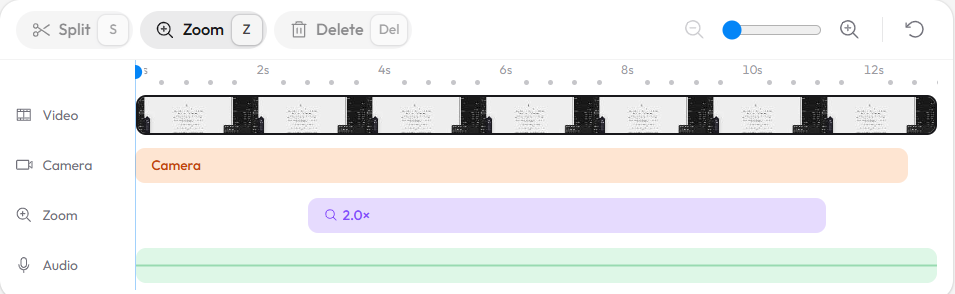
How do I add a zoom by hand?
- Open the recording in the editor. Stopping a Recordful recording opens it there. For a video made elsewhere, open recordful.app/editor and drop in the file.
- Move the playhead to where the zoom should start.
- Press Z, or click Zoom above the timeline. A zoom lands on the Zoom row.
- Drag its ends to set when it starts and stops.
- Click it to open its settings, and drag the red dot on the picture to where it closes in.
Two shortcuts save time when one zoom works well: Ctrl + D duplicates the selected zoom, and Ctrl + C then Ctrl + V copies it to the playhead.
How close should a zoom go?
Select a zoom and move Depth. It goes from 1.1× (a gentle push) to 4× (one button fills the frame). Around 1.5× to 2× suits most product demos: close enough to read, wide enough to keep context.
Can the zoom follow my cursor?
Yes. Select a zoom and pick Follow cursor under its position. The zoom then pans with your pointer and keeps it in view. Pick Fixed to hold one spot instead, and drag the red dot to place it.
Follow cursor needs the pointer's path, which Recordful records for you. For a video recorded with another tool there is no path, so its zooms are fixed.
Can I change how auto-zoom behaves?
Yes. Open Zoom in the left rail (or press 5). Under Auto-zoom on clicks:
| Setting | What it does | Range | Default |
|---|---|---|---|
| Hold after last click | How long a zoom stays after its last click | 0.5 to 5 seconds | 1.5 seconds |
| Merge clicks within | How close together clicks must be to share one zoom | 0.5 to 6 seconds | 2.5 seconds |
New recordings use your settings. To remake this video's zooms with them, click Redo zooms from clicks. It replaces the zooms the video has now, and Ctrl + Z brings them back if you change your mind.
Fast clicker? Lower Merge clicks within so each step gets its own zoom. Slow talker? Raise Hold after last click so the zoom stays while you explain.
What is the 3D zoom?
A zoom can also lean in, like a camera tilting towards the screen. Select a zoom and pick a Perspective direction (Auto, Left, Right, Top, Bottom, Flat or a corner), then set its Strength. Perspective shows once the video has a background behind it. It is part of Recordful Pro; every other zoom setting is free.
Tips for zooms that look good
- One target per zoom. Two things far apart in one zoom means neither is readable.
- Hold long enough to read. If you can't read it in the preview, neither can your viewer.
- Move the cursor calmly. Follow cursor pans with you, so slow moves look smooth.
- Zoom out between steps. A wide shot reminds viewers where they are.
- Don't zoom on everything. A zoom works because it is used on purpose.
For the rest of the polish (backgrounds, padding, click effects), see how to make a screen recording look professional. Zooms are the core of a good product demo video and of a tutorial video.
Frequently asked questions
Is auto-zoom free? Yes. Auto-zoom on clicks, zooms you add by hand, Follow cursor, depth and the auto-zoom settings are all free, with no account. Only the 3D perspective is part of Pro.
Why didn't a click get a zoom? A single click on its own is treated as navigation. Two or more clicks close together get a zoom. Raise Merge clicks within so clicks further apart count as one burst, or press Z to add a zoom yourself.
How do I remove a zoom? Click it on the Zoom row and press Delete, or click the bin in its settings.
Can I zoom in on a video I recorded with another tool? Yes. Open recordful.app/editor, drop in an MP4, WebM or MOV file and press Z wherever you want a zoom. Auto-zoom and Follow cursor need the clicks and cursor path that a Recordful recording saves.
Does the zoom lower the quality? A zoom enlarges part of the picture, so it is sharpest when you record at a high resolution. Record at 1080p or above, and stay at or under 2× for crisp text.
Do zooms show up in the exported video? Yes. The export renders every zoom exactly as the preview shows it.