By Kislay, creator of Recordful. Last updated November 13, 2026.
Short answer: Open the recording in Recordful's editor and click Watermark in the left toolbar. Choose Logo, Text or Both, click + to upload your logo (PNG, JPEG or WebP), type your name or URL, and set the Size and Opacity. The watermark sits in the bottom right corner of the preview, every export and the share page. It's free, and so is turning it off.
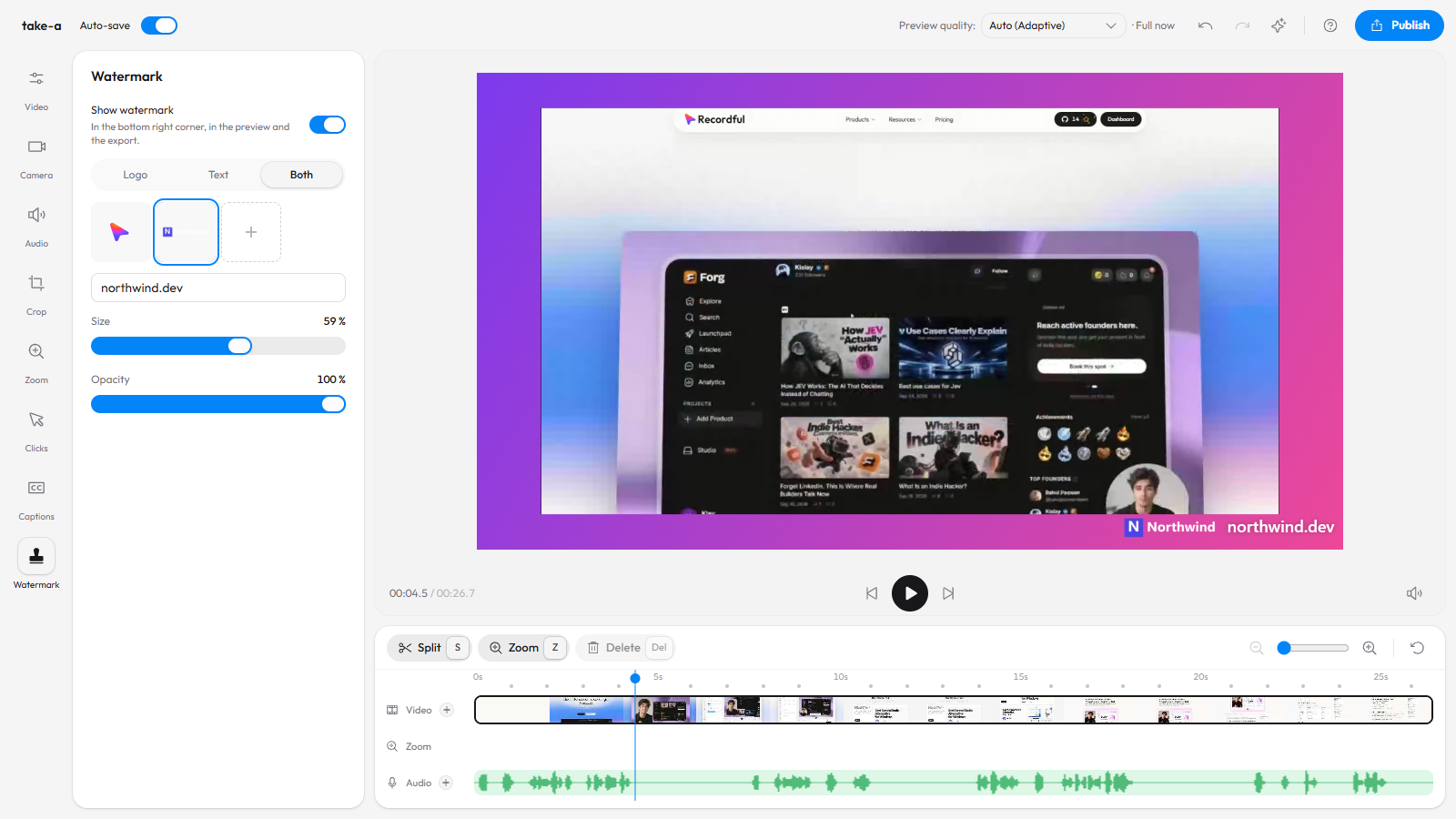
A screen recording exported with a logo and a URL in the corner.
Why watermark a screen recording
- Branding. A demo that gets shared on X or in a Slack you're not in still says whose product it is.
- Credit. Tutorials get reposted. Your name in the corner travels with them.
- Client work. Agencies and freelancers send work in progress with their mark on it.
- A URL instead of a logo. "yourapp.com" in the corner is a call to action that never leaves the screen.
Step 1: Open the Watermark tool
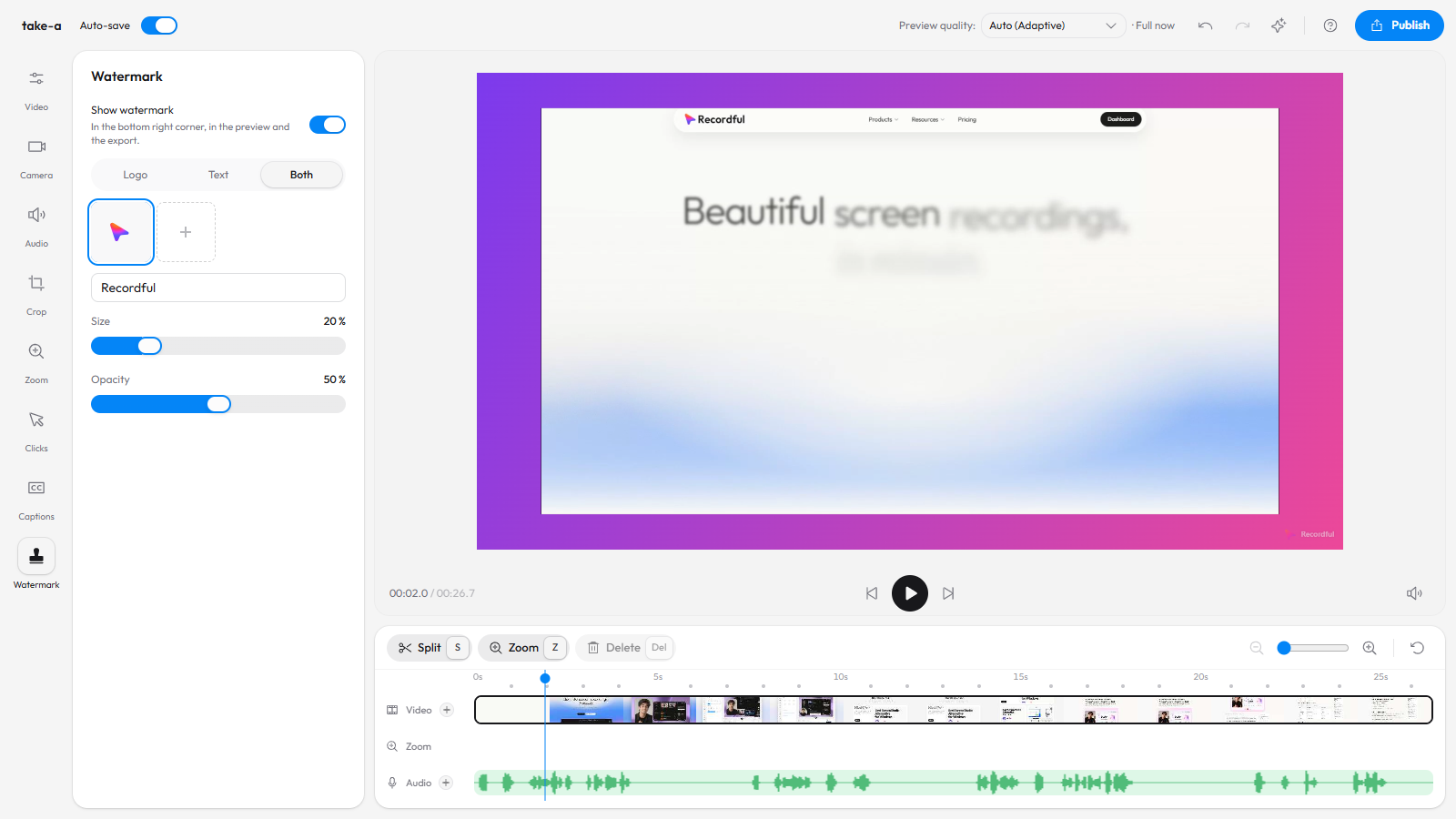
Open the recording in the editor (it opens on its own when you stop a Recordful recording, or drop any video into recordful.app/editor). Click Watermark at the bottom of the left toolbar.
A new recording starts with the Recordful logo and name, at 20% size and 50% opacity.
Step 2: Upload your logo
Click the + tile and pick your logo. PNG, JPEG and WebP work. A PNG with a transparent background looks best, and a light logo reads better on most screen recordings.
Your logo replaces the Recordful one. It stays with the recording, so you only upload it once per video.
Step 3: Choose Logo, Text or Both
- Logo shows only the picture.
- Text shows a line of text: your name, your company, or a URL.
- Both puts them side by side.
Step 4: Set the size and opacity
Two sliders do it. Keep it readable but quiet: around 30 to 60% size and 60 to 100% opacity works for most videos. Check it over the busiest part of your video, since a mark that disappears on a white page is no use.
Step 5: Export
Click Publish → Download locally and export MP4 or WebM up to 4K. The watermark is burned into the video. On Recordful Pro, Share as link keeps it on the share page too.
How to remove the watermark
Turn off Show watermark in the Watermark panel. That's all. There is no paid tier to remove it, and nothing else is added to your export.
Watermark in other screen recorders
| Tool | Custom logo watermark | Remove the tool's own branding |
|---|---|---|
| Recordful | Yes, free | Free |
| Loom | Your logo on the video player (not in the file), Business plans and up | Business plans and up |
| Screen Studio | Requested on its feedback board, not built in as of November 2026 | No branding to remove |
| Camtasia | Yes, in a paid app | Paid app |
Frequently asked questions
How do I add a logo to a screen recording? In Recordful's editor, click Watermark, click + to upload your logo, and export. The logo appears in the bottom right corner of every export.
Can I add text instead of a logo? Yes. Choose Text and type your name, company or URL, or choose Both for a logo and text side by side.
Can I move the watermark? It sits in the bottom right corner. You can change its size and opacity.
Is the watermark free? Yes. Adding your own logo, changing it and turning it off are all free, with no account.
Does the watermark show on the share link? Yes. It stays with the recording, so the Pro share page and every export carry it.
Does the desktop app have it? Yes. The Recordful desktop app for Mac, Windows and Linux has the same Watermark tool, and its exports carry the mark.
See the Recordful Editor for everything else the editor does.