By Kislay, creator of Recordful. November 14, 2026.
Today Recordful gets motion graphics. Recordful Motion puts animated lower thirds, titles and callouts over your screen recording, and the Recordful Agent can place them for you from what you say. Along with it: blur and spotlight masks, Motion and spotlight in desktop app 2.2, and a recordful-motion skill that helps Claude Code, Cursor and other AI apps design graphics that don't look generated.
The video above was made in the Recordful editor: the site's own product tour, a kicker lower third at 3 seconds and a title at 8.6 seconds, exported as an MP4. Nothing else was used.
What's new
- Lower thirds. A name and a role in four styles: clean bar, dark card, soft pill and kicker. Open Motion in the editor (press 8), pick one, and it lands at the playhead. Learn more
- Titles. An opening or chapter title, in a cyan prism style or handwritten. A long title shrinks to fit the frame instead of running off it.
- Callouts. A number with a ring that fills as it counts ("3.4 out of 100, conversion rate"), or a highlighted sentence for the one line to remember.
- The Agent places them. Ask "add a lower third when I introduce myself" and the Agent reads the transcript, writes the words in, and puts each graphic where it belongs. Part of the Agent beta in Recordful Pro. Learn more
- Your own design. Add any HyperFrames composition (a single .html file up to 400 KB), and the words in it become fields you can edit.
- Blur and spotlight. A new Masks tool (press 9) hides an email or a password, or dims everything but the part that matters. Learn more
- In the desktop app. Pick Motion or Spotlight in an annotation's settings. Desktop 2.2 for macOS, Windows and Linux.
- For AI apps. recordful-mcp 1.3.0 adds a make_motion prompt and a recordful-motion skill.
Lower thirds, titles and callouts
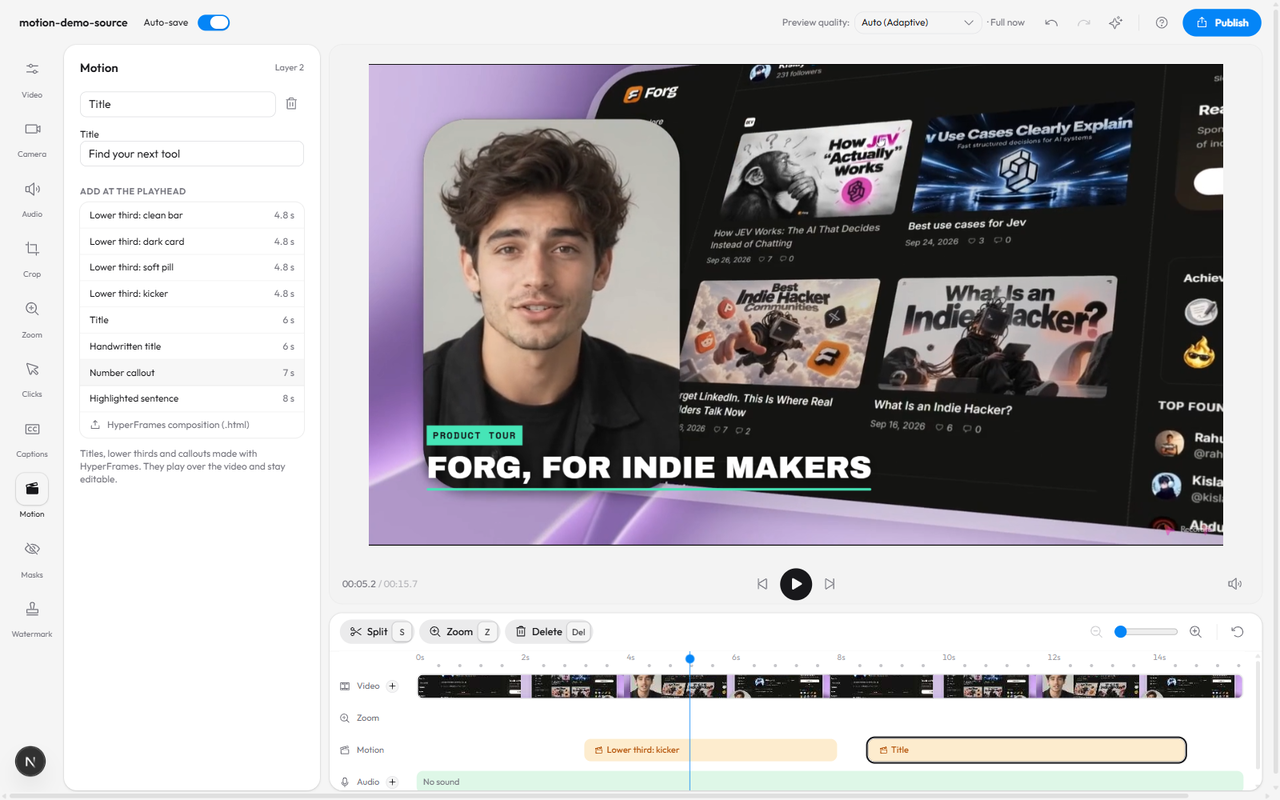
Each graphic is a layer on the timeline's Motion row. Its words are fields in the panel, and the preview redraws while you type, so you see the lower third with your name in it, not a placeholder. Drag the layer to move it, or drag its ends to trim it.
There are eight to start from:
| Graphic | What you type | Length |
|---|---|---|
| Lower third: clean bar, dark card, soft pill | Name, Role | 4.8 s |
| Lower third: kicker | Kicker, Name | 4.8 s |
| Title | Title | 6 s |
| Handwritten title | Title | 6 s |
| Number callout | Number, Out of, After the number, Label, Caption | 7 s |
| Highlighted sentence | Sentence | 8 s |
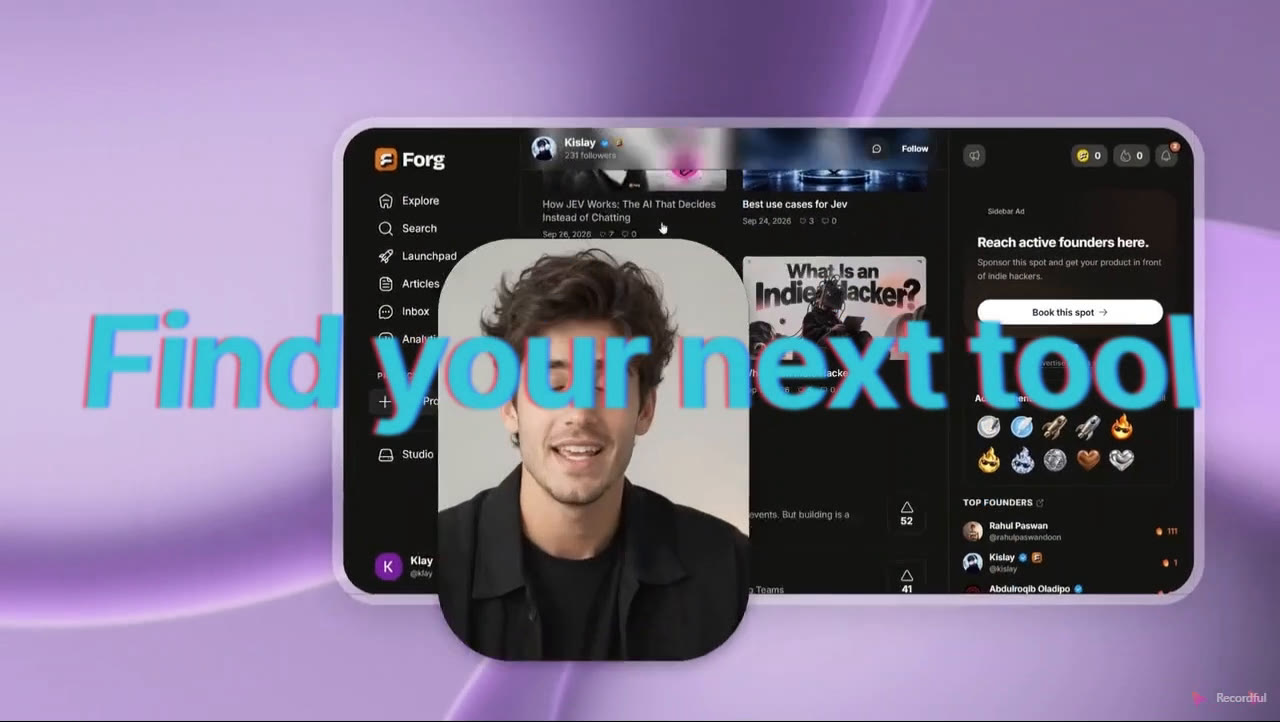
The frame above is from the exported MP4, not the preview. What you see while editing is what ends up in the file.
Ask the Agent
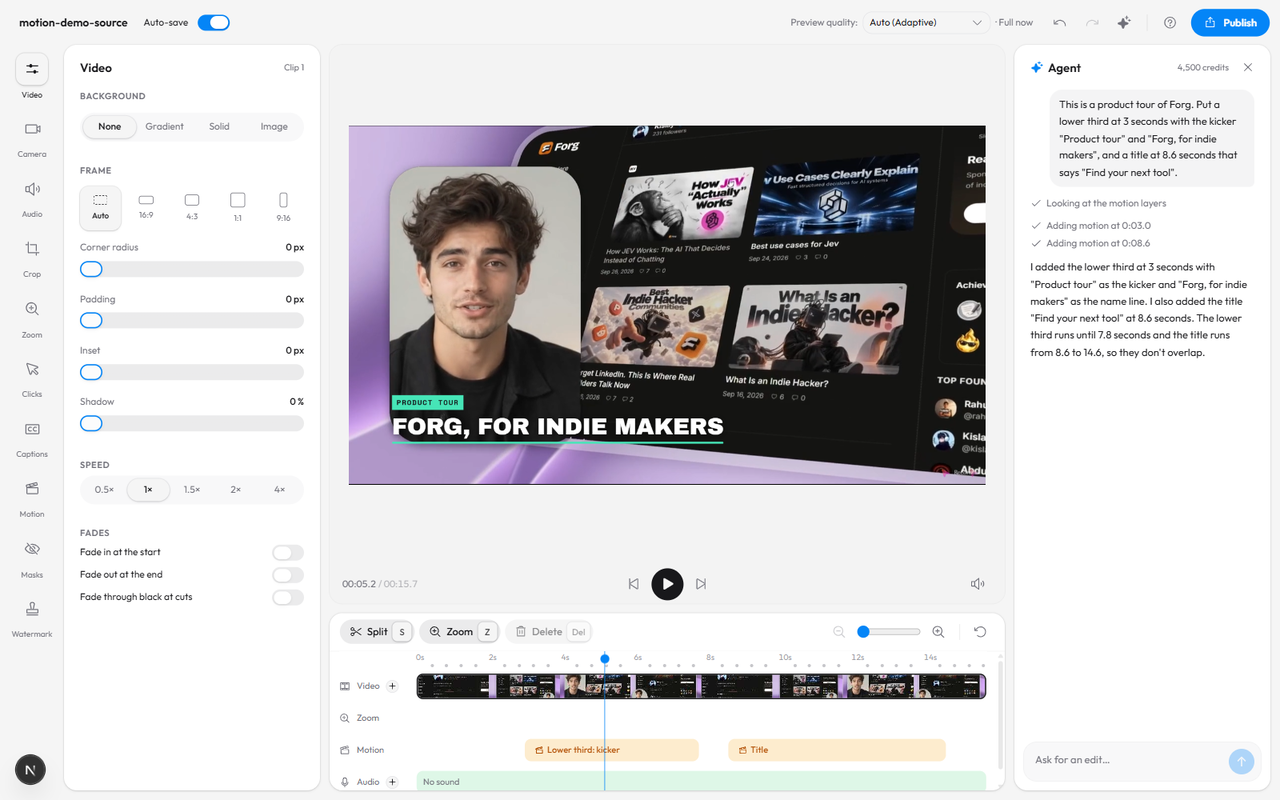
Open the Agent with Shift+S and say what you want. A few that work:
- "Add a lower third when I introduce myself."
- "Put a callout on the conversion number."
- "Add a title at the start: Product tour."
- "Change the role to Founder."
- "Remove the title."
The Agent takes its words from your transcript or from you, never from thin air. If it doesn't know your role, it asks. When you give a time, it starts the graphic there; when it picks the moment itself, it starts about half a second before the words it matches. It adds few graphics, never two at once, because a callout on every line is noise.
Everything it does lands in the editor's history, so Ctrl+Z undoes it like an edit by hand.
Blur and spotlight
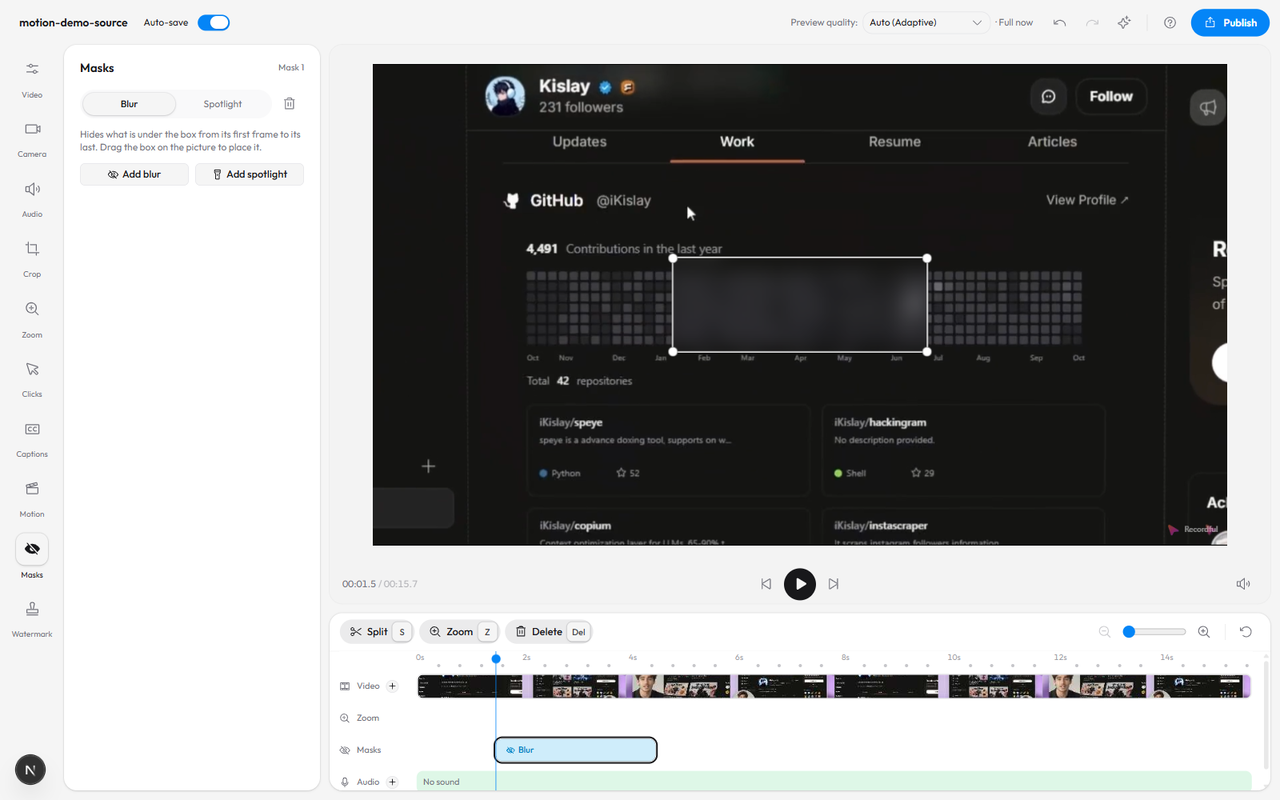
Every demo has something on screen that shouldn't be there: an email, an API key, a customer's name. Open Masks, click Add blur, and drag the box over it. A spotlight does the opposite: it dims everything around the box to point at one part of the screen.
Masks stay on target when the video zooms in or is cropped, are saved with a cloud recording's edit, and are in the export. Where a browser can't blur, the mask becomes a coarse mosaic, so nothing shows through.
In the desktop app
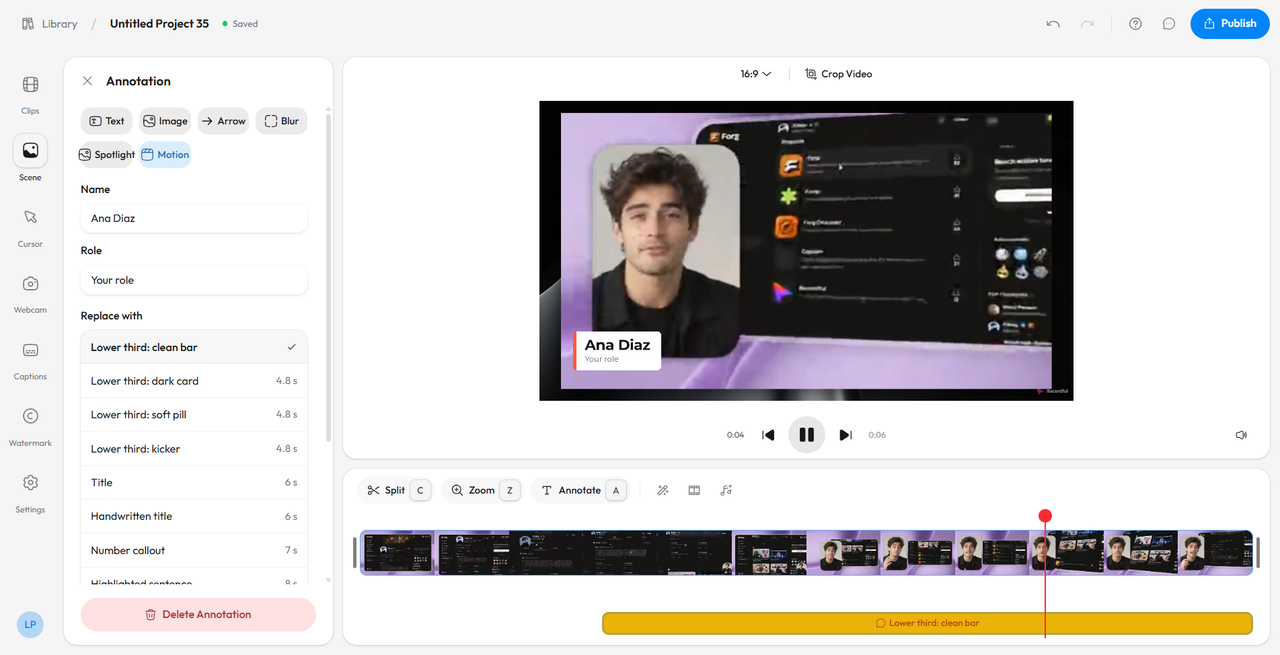
Desktop 2.2 has the same eight graphics. Add an annotation (press A), pick Motion, then a graphic, and type its words. It plays over the whole video, under the captions, and exports with it. Spotlight is a new annotation type next to Blur.
How it works: no render step
Each graphic is a HyperFrames composition: one HTML file with its animation, words and fonts inside. HTML graphics are usually rendered into video frame by frame, often on a server, before you can see the result. Recordful skips that step.
The editor plays the composition in a sealed frame on your computer, with no network access and no way to reach the rest of the page. For each frame of your video, it seeks the composition to that moment and draws it straight into the picture with HTML-in-Canvas, a browser feature that turns live HTML into a canvas image. It takes about 20 to 40 milliseconds a frame, fast enough for the preview to keep up as you scrub.
That is why Motion needs Chrome 157 or later, where HTML-in-Canvas is on by default, or the desktop app, which turns it on. In another browser the editor keeps your motion layers and tells you where they can be seen and exported.
Nothing is uploaded to make a graphic. A local recording stays on your computer from recording to export.
Bring your own design
Templates cover the common cases. For anything else, add a HyperFrames composition from the bottom of the Motion list. Text in an element with an id becomes a field in the panel.
You don't have to write one by hand. Connect your AI app to Recordful with the Recordful MCP server and ask it for a graphic. The make_motion prompt and the recordful-motion skill give it shot recipes with timings, the HyperFrames blocks to start from, and a review checklist of the defaults that make motion look generated: everything sliding in from the same side, every word bouncing, centered text with a glow. Then add the file from the Motion panel.
Pricing
- Free: Motion layers, your own compositions, blur and spotlight, in the web editor and the desktop app.
- Recordful Pro: the Agent placing them for you, with 4,500 AI credits a month per workspace. Pro is $19 a month or $108 a year.
Fixes
- The Agent keeps every change it makes in one go. Asking for two things at once, such as "add captions and make it vertical", could leave only the last one done. Each change now stays.
Frequently asked questions
Do I need to install anything?
No. Motion is part of the web editor at recordful.app, which opens when you stop a recording in the Chrome extension. For the desktop app, update to 2.2.
Which browsers show Motion?
Chrome 157 or later. In a browser without HTML-in-Canvas, the editor keeps your layers and points you to Chrome or the desktop app.
Can I change the colours or fonts?
Not from the panel yet. The templates keep their own design so they look right together. For a different look, use your own HyperFrames composition, or ask your AI app to write one with the recordful-motion skill.
Does it work on cloud recordings?
Yes. Motion layers and masks are saved with the edit, on a local recording or a cloud one.
Try it
Record a take with the Chrome extension or the desktop app, open Motion, and type. See Recordful Motion for the full tour, and the changelog for everything in this update.