By Kislay, creator of Recordful. Last updated November 19, 2026.
Short answer: Chrome has a full-page screenshot built in, hidden in DevTools: press F12, then Ctrl+Shift+P (Cmd+Shift+P on a Mac), type screenshot and pick Capture full size screenshot. Chrome saves a PNG of the whole page to your downloads. For pages with sticky headers, cookie banners, images that load as you scroll, or content that scrolls inside a panel, use a free extension like Recordful: click the icon, choose Full page, and it scrolls the page, loads the images, shows the header once and opens the result in an editor.
Can Chrome take a full-page screenshot without an extension?
Yes. It's a developer tool, so it's a little hidden, but it's free and already in Chrome.
Way 1: the Command Menu
- Open the page you want to capture.
- Open DevTools: press F12, or Ctrl+Shift+I (Cmd+Option+I on a Mac).
- Open the Command Menu: press Ctrl+Shift+P (Cmd+Shift+P on a Mac).
- Type
screenshot. - Pick Capture full size screenshot and press Enter.
Chrome saves a PNG of the whole page to your downloads folder. The same menu also has Capture screenshot (just what's visible), Capture area screenshot (drag out a part) and Capture node screenshot (the element selected in the Elements panel).
Way 2: Device Mode
From Google's Chrome DevTools documentation on Device Mode, on November 19, 2026: turn on the device toolbar (Ctrl+Shift+M, or Cmd+Shift+M on a Mac), click More options (the three dots in the toolbar above the page) and select Capture a full size screenshot. This one is handy when you want the page at a phone's width.
Why do full-page screenshots come out wrong?
DevTools takes the page as one tall picture, which works well on simple pages like an article. Modern sites often have parts that don't fit that idea:
- Pages that scroll inside a panel. Many web apps, docs sites and dashboards scroll a box inside the page instead of the page itself. A tool that captures the page can then come back with just one screen of it.
- Images that load as you scroll. Lazy-loaded pictures only load when they come near the screen, so a capture that doesn't scroll can show grey boxes or blank space where they should be.
- Sticky headers and banners. A header, cookie banner or chat bubble pinned to the screen can end up in the wrong place, or repeated down the picture by tools that scroll and stitch naively.
- Sections sized to the screen. A hero section set to "the height of the screen" can stretch when the screen is made as tall as the page.
How do I take a full-page screenshot that handles all that?
Recordful is a free Chrome extension that takes full-page screenshots the way a person would read the page: it scrolls.
- Install Recordful from the Chrome Web Store. It works in Chrome, Edge and Brave.
- Open the page and click the Recordful icon.
- Open the Screenshot tab and choose Full page.
- Wait a moment while it scrolls and stitches the page.
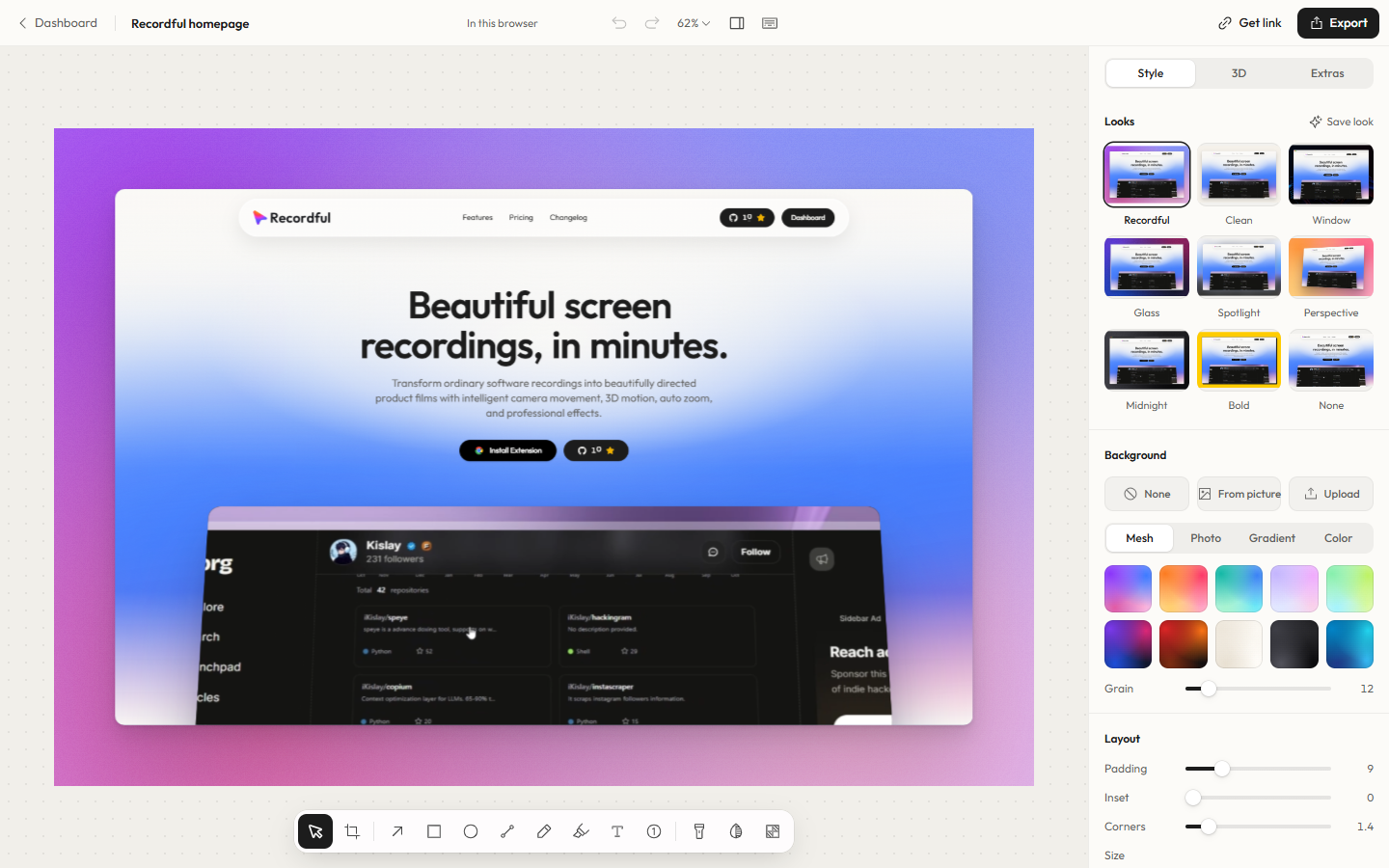
- The screenshot opens in Recordful's editor. Download it as PNG, JPEG or WebP, or copy it.
No account is needed. Here's what it does on the way:
- Loads lazy images first. It makes a quick pass down the page so pictures that load as they come near are loaded before the capture starts.
- Shows sticky bars once. Headers at the top appear once, at the top. Bars at the bottom, like a cookie banner or a chat's message box, appear once, at the bottom, instead of repeating down the picture or landing in the middle.
- Finds the part that scrolls. If the page scrolls inside a panel, as web apps and docs sites often do, it scrolls that panel and captures all of it.
- Keeps text sharp. Where it can, the page is drawn by the browser itself, so text and code stay crisp at any zoom.
- Leaves itself out. Recordful's own buttons are hidden while it captures.
What else can I capture?
The same Screenshot tab takes four kinds:
| Mode | What it captures |
|---|---|
| Selected area | A box you drag out, or one element you click |
| Visible part | What's showing in the tab right now |
| Full page | The whole page, scrolled and stitched |
| Entire screen or window | Any screen or window on your computer |
You can set a keyboard shortcut for each in Chrome's extension shortcuts (chrome://extensions/shortcuts).
What can I do with the screenshot afterwards?
The DevTools screenshot is a plain PNG. Recordful's opens in a free editor first:
- Make it look good. Mesh, photo, gradient or colour backgrounds, padding, rounded corners, window frames, shadows and sizes for X, Instagram, LinkedIn and stories. Tilt it in real 3D.
- Mark it up. Arrows, boxes, ellipses, lines, a pen and a highlighter, text, numbered steps and a spotlight.
- Hide private details. It spots emails, phone and card numbers, keys and tokens on the page, and hides them all in one click. Blur and pixelate throw the detail away, so it can't be brought back.
- Copy the text. The words on the page can be copied exactly as written.
- Export. PNG, JPEG or WebP at up to 3×, with no watermark, or share straight to Forg, X or Threads.
Frequently asked questions
How do I take a scrolling screenshot in Chrome? Open DevTools (F12), press Ctrl+Shift+P (Cmd+Shift+P on a Mac), type "screenshot" and pick Capture full size screenshot. Or install Recordful, click its icon, open Screenshot and choose Full page, which scrolls the page for you.
Is there a shortcut for a full-page screenshot in Chrome? Chrome has no single key for it. The quickest built-in route is Ctrl+Shift+P inside DevTools, then Capture full size screenshot. With Recordful you can set your own shortcut in chrome://extensions/shortcuts.
Where does Chrome save a full-page screenshot? DevTools saves it as a PNG in your downloads folder. Recordful opens it in its editor, where you download or copy it.
Why does my full-page screenshot show only one screen? The page probably scrolls inside a panel rather than the whole window. Recordful finds the panel that scrolls and captures all of it.
Why are images missing from my full-page screenshot? They load only as you scroll near them. Recordful scrolls the whole page first so they load before it captures.
Is Recordful free? Yes. Screenshots, the editor and downloads are free, with no account and no watermark on downloads.
Can I take a full-page screenshot on a Chromebook? Yes. Both DevTools and the Recordful extension work in Chrome on ChromeOS.
See Recordful Screen Capture and how to make a screen recording look professional.